
Blog · Guide · · 3 min read
Keep the guest network away from your servers
Staff and guests on separate LANs at the same office, a server at another, and one rule: staff may reach it, guests may not. Built from the LANs themselves, so it keeps working when addresses change. Tested from both sides.
A guest network is there so visitors can get online without getting into anything else. In a single office the router keeps the two apart. Once offices are joined together, the question becomes whether a guest at one office can reach the server at another, and without a rule, the answer is usually yes. This guide makes it no, with one group per network and one rule.
As always, a real run. Office A had two LANs on its Weft box, staff and guest, each with a PC on it, and an accounts server sat at the branch. Each PC asked the server for a page every ten seconds, throughout.
What you need
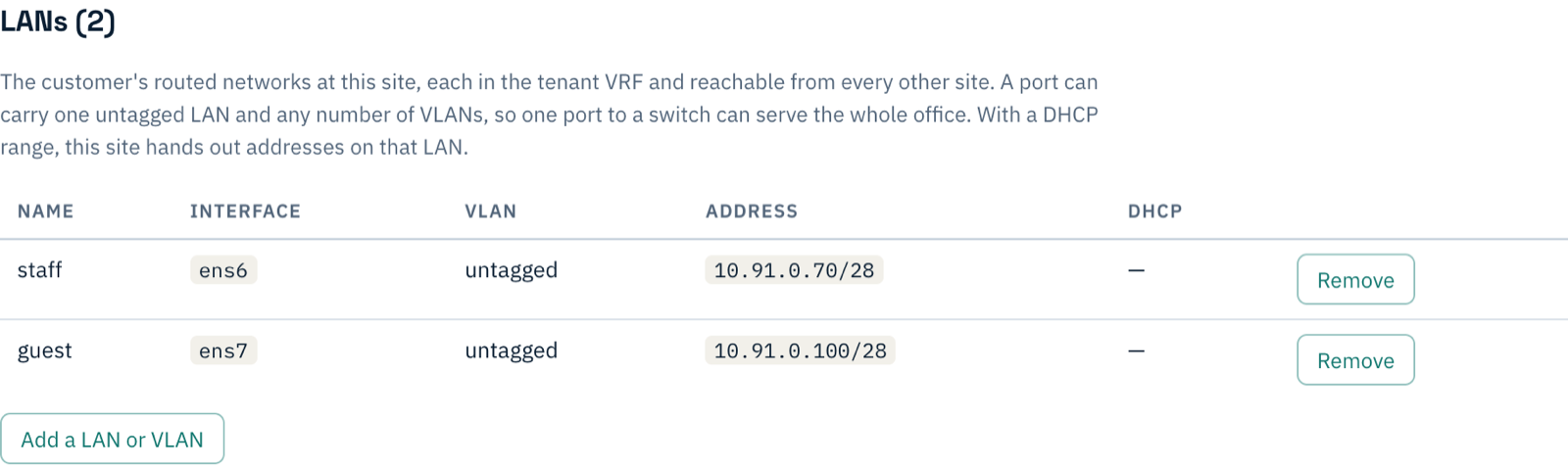
- Your staff and guests on separate LANs at the office. Two ports, as in our run, or two VLANs on one port to the switch: on the site's page under LANs, Add a LAN or VLAN.
- The server's office set up as in the earlier guides.
Before
staff PC   server: 200
guest PC   server: 200
Both reach the server: the offices are joined, and nothing says the guest network should not.
1. A group for each network
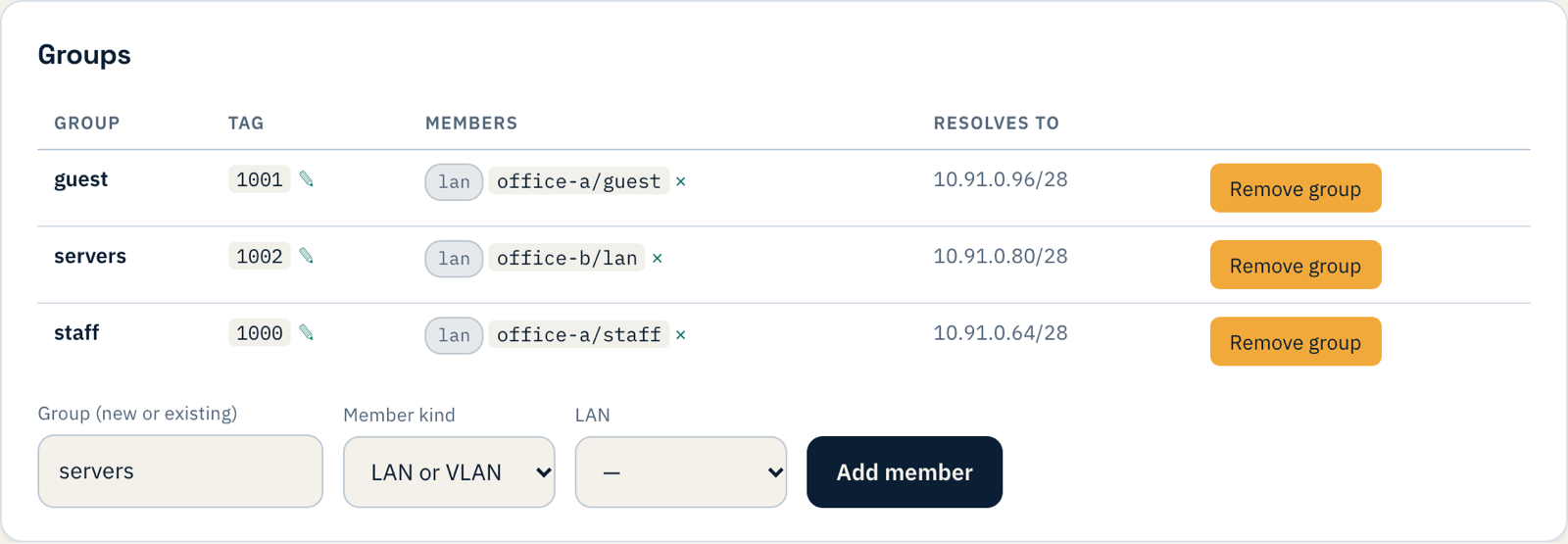
Open Policy. Under Groups, choose the member kind LAN or VLAN and pick the network from the list: office-a/staff into a group called staff, office-a/guest into guest, and the server's LAN into servers.
2. One rule
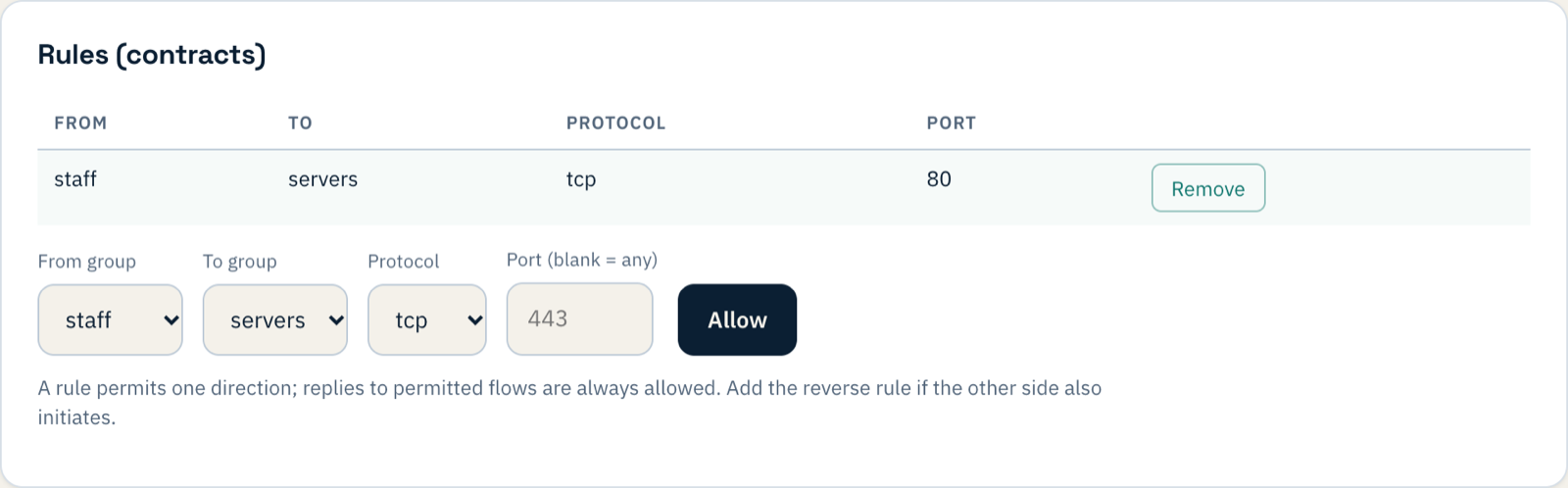
Under Rules, allow staff to servers on tcp port 80. There is no rule for guest, and that is the point: once policy is on, anything no rule allows is refused.
3. Turn it on
Set the Mode to enforce. If you would rather see what it would block first, log records it and blocks nothing.

4. Check from both PCs
20:23:23  (enforce)
20:23:43  guest PC   server: 200
20:23:57  guest PC   server: refused
20:24:02  staff PC   server: 200
34 seconds after enforce the guest PC was refused, and it stayed refused. The staff PC answered every one of its 35 requests from then on, without a single failure.
Things to know
- Everything without a rule stops. In our run the branch's own PC also lost the router at office A when policy went on, because no rule allowed it. Add rules for the traffic you want before you enforce, or start in log and read what it would block.
- Guests and the internet. If your guests reach the internet through Weft, allow it with one more rule,
guestto the built-ininternetgroup. We did not test internet access in this run. - The same pattern fits other networks. Phones, cameras, a payroll provider: one group each, and only the rules they need. The contractor guide does the same for a single device.
If something does not work
| What you see | What it means |
|---|---|
| Guests still reach the server | Policy is in log or off, or a broader rule covers the guest group. |
| Staff lost the server too | The rule's port does not match the server's (443 rather than 80, say), or the staff PC is not on the staff LAN. |
| A group "resolves to" nothing | The LAN it names has been removed or renamed. |
What you have now
A guest network that gets visitors online and nothing more, written down as one rule you can read, and following the LAN wherever its addresses go.