
Blog · Guide · · 3 min read
Give a contractor one server and nothing else
Deny by default, then allow exactly what is needed: a contractor's laptop that reaches the billing server and is refused everything else on the network. Three groups-and-rules steps, tested from the laptop.
A traditional VPN gives everyone who connects the whole network. That is fine for staff and wrong for a contractor who needs one system for three weeks. Weft's policy works the other way round: once it is on, nothing is allowed unless a rule allows it. This guide gives a contractor the billing server and nothing else, then checks from the contractor's laptop.
As before, this is a real run: an office with its network behind a Weft box, two servers on that network (billing and a file server), and a Windows laptop as the contractor.
What you need
- An office whose network is behind its Weft box, as in reach the printer at the other office.
- The contractor's laptop added as a device (the first guide, step 8).
Before any policy, the laptop reached both servers: billing and the file server both answered. That is the starting point to change.
1. Name what you are protecting, and who
Open Policy. Under Groups, add a group called billing with the billing server's address as a prefix member (10.91.0.75/32), and a group called contractors with the contractor's laptop as a client member.
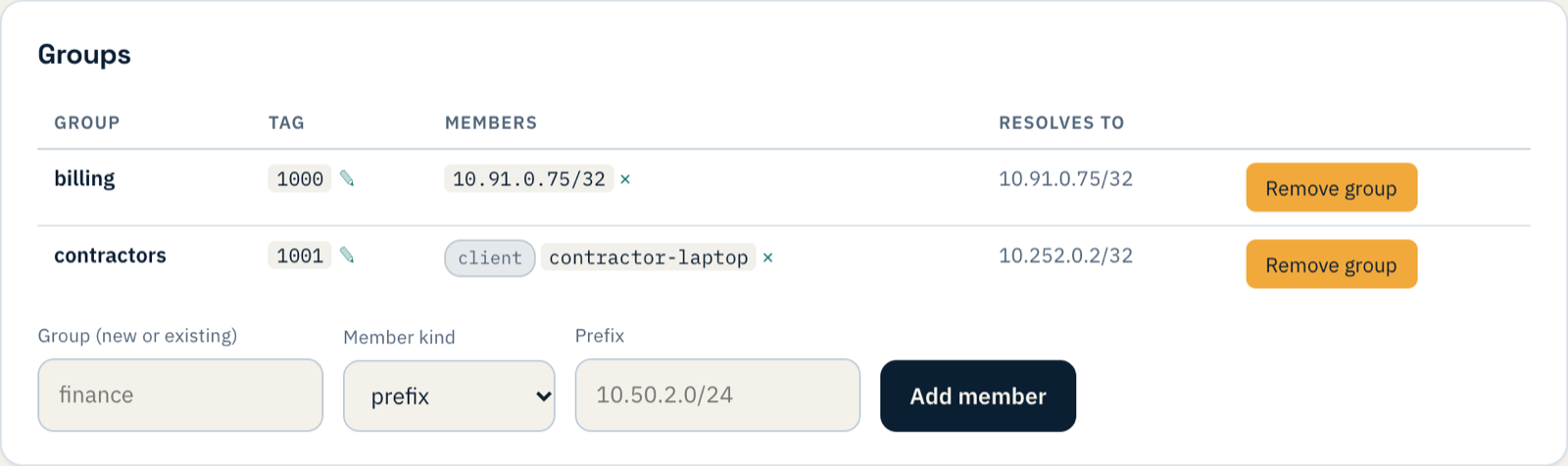
Policy is still off at this point, and nothing changes on the network while you build it. You can add groups and rules, read them back, and only switch them on when they are right.
2. Allow exactly one thing
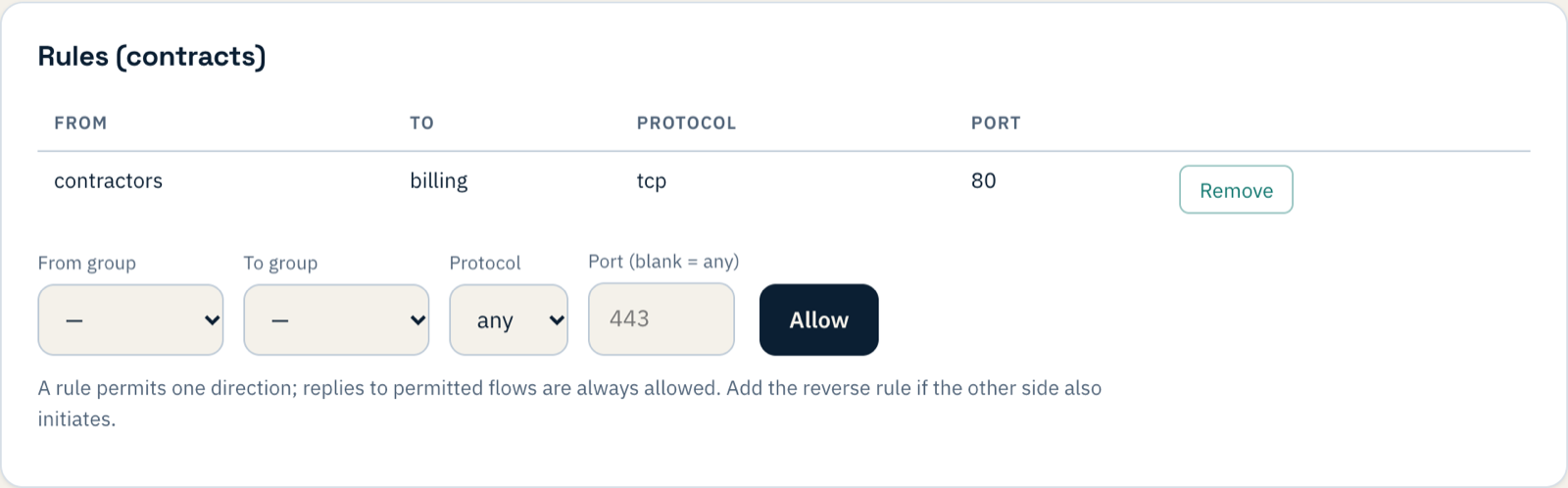
Under Rules, choose contractors to billing, protocol tcp, port 80, and press Allow.
3. Turn it on
At the top of the page, the Mode has three settings. Log records what would be blocked and blocks nothing, which is the safe way to check a new policy against real traffic. Enforce blocks it. We went straight to enforce.

Think before you press it: from this moment everything between groups that no rule allows is refused. Make sure your own staff have rules too, or put them in a group with the access they need, before enforcing.
4. Check from the contractor's laptop
billing   10.91.0.75   HTTP 200  Billing
files     10.91.0.76   BLOCKED (the operation timed out)
The billing server answers; the file server, which no rule mentions, does not. The laptop is still connected, still on the same network, and simply cannot see anything it was not given.
When the contract ends, remove the laptop from Weft on the Clients page, or just take it out of the contractors group: with policy on, a device in no group reaches nothing.
If something does not work
| What you see | What it means |
|---|---|
| The contractor cannot reach billing either | The rule's port or protocol does not match what the server uses (a web server on 443, not 80, for instance). |
| Your own staff lost access when you enforced | They are in no group that a rule allows. Add the rules for staff, or switch back to log while you do. |
| A group "resolves to" nothing | Its member is wrong: a mistyped prefix, or a client that has been removed. |
What you have now
A contractor with exactly the access the job needs, written down in one rule anyone can read, and revoked by removing one device. The same pattern covers a payroll provider, an auditor or a support company: one group, one rule, nothing else.