
Blog · Guide · · 4 min read
Let Microsoft 365 leave every office directly
Send the branch's internet through head office's firewall, but let Outlook, SharePoint and Teams go straight out of the branch's own line, as Microsoft recommends. Three tick boxes, and the firewall's own counter to prove it.
The last guide sent a branch's internet through head office's firewall. That is right for most traffic and wrong for Microsoft 365. Microsoft asks that Outlook, SharePoint and Teams traffic leave each office by the nearest way out, not a detour through another office and its firewall: Teams calls are sensitive to the extra distance, and Microsoft already protects these connections at its end. Weft calls this local breakout.
As always, a real run. The branch from the last guide, with its internet going through head office, and a PC there that every ten seconds asked which address the internet saw it at, opened Outlook on the web, and opened the Microsoft sign-in page. Head office's firewall counted every packet it handled for the branch.
What you need
- Offices set up as in the perimeter guide, or any setup where internet traffic goes through Weft.
- An internet line at the branch that the Weft box itself uses (its WAN 1). Microsoft 365 leaves by that.
Before: everything through head office
With only the perimeter set, every request from the branch PC went through head office:
PC        internet sees me at: 18.171.237.149 | Outlook: 302 in 0.11 s | sign-in: 302 in 0.62 s
firewall  packets from the branch: all 1057, to Outlook 295, to Microsoft sign-in 340
18.171.237.149 is head office's firewall, and its counter for Outlook was climbing with every request.
1. Choose what leaves locally
Open Microsoft 365. Weft fetches Microsoft's published list of addresses and keeps it up to date; the page groups them the way Microsoft does, by service and category. Microsoft sorts them into three categories: Optimize is the traffic it most wants sent directly, Allow is the next most, and Default is everything else. We ticked Optimize for Exchange (Outlook), SharePoint (and OneDrive) and Skype (Teams), and pressed Save selection.
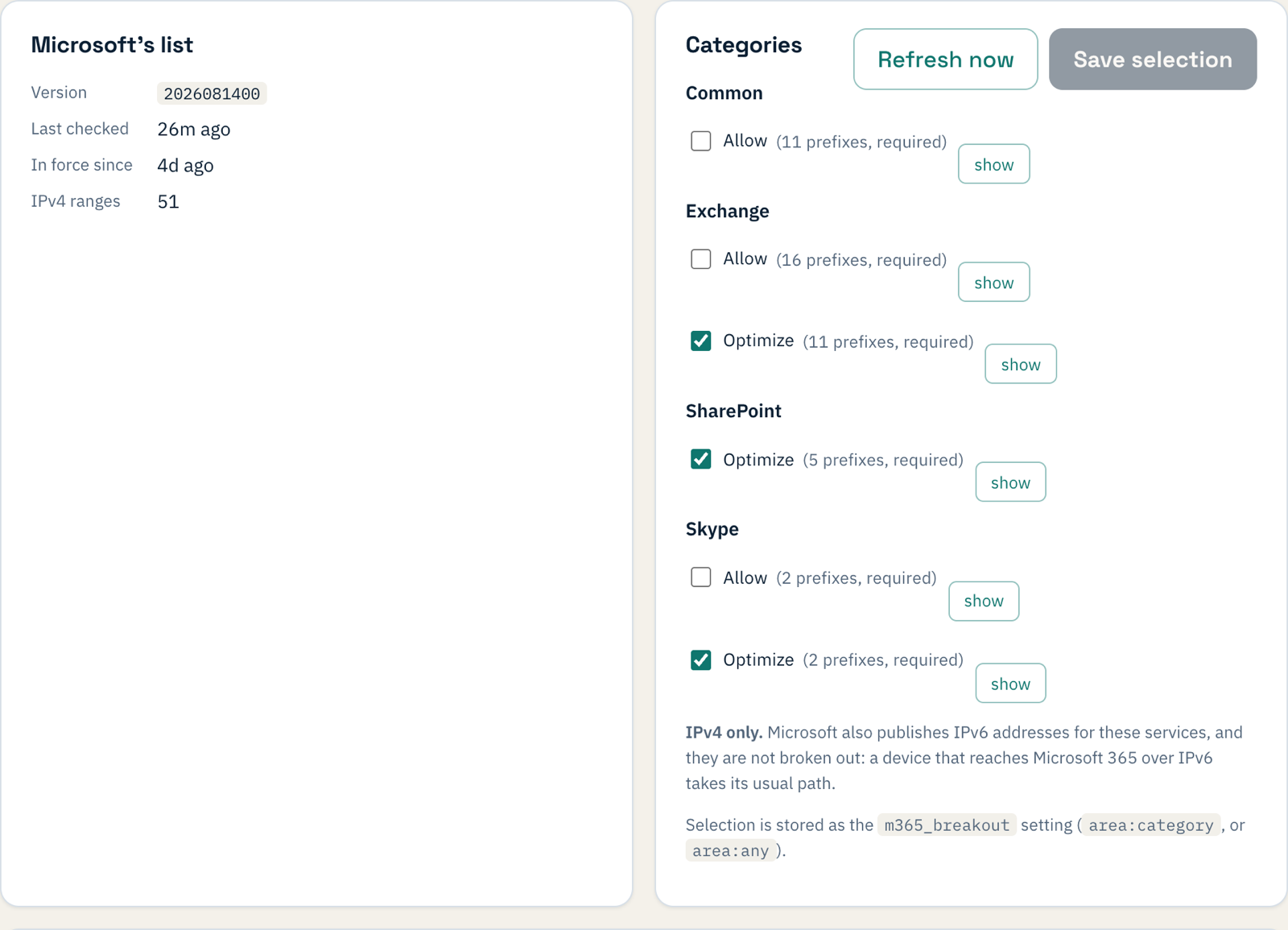
The choice applies to every site in your organisation at once. Microsoft changes its list now and then; Weft picks up the change by itself and rolls it out to a test site first, the same as any other change.
2. Watch the firewall
The PC kept going, and so did the firewall's counters, reported every thirty seconds:
14:36:57  packets from the branch: all 1057, to Outlook 295, to Microsoft sign-in 340
          (Save selection pressed)
14:37:27  packets from the branch: all 1169, to Outlook 312, to Microsoft sign-in 393
14:37:57  packets from the branch: all 1262, to Outlook 312, to Microsoft sign-in 445
  ...
14:43:57  packets from the branch: all 2208, to Outlook 312, to Microsoft sign-in 964
Within half a minute of Save, the firewall stopped seeing Outlook traffic from the branch, and for the next seven minutes it saw none, while the PC opened Outlook 48 times without a single failure. That traffic now leaves through the branch's own line.
The sign-in counter kept climbing. The Microsoft sign-in service is in the Allow category of the Common group, which we did not tick, so it still goes through head office, as does everything else: the PC's internet address stayed 18.171.237.149 throughout. Only what you choose leaves locally.
Our two offices were in the same AWS region, so Outlook answered in about a tenth of a second either way. Between real offices, the detour to head office is what you save, and for Teams calls that is the difference that matters.
Things to know
- Head office's firewall no longer sees this traffic. That is the point, and it is what Microsoft recommends for the Optimize category, but if you rely on that firewall to log or filter Microsoft 365, tick less.
- IPv4 only. Microsoft also publishes IPv6 addresses. A PC that reaches Microsoft 365 over IPv6 takes its usual path.
- Each branch needs its own way out. A site whose box has no internet line of its own has nowhere local to send it.
If something does not work
| What you see | What it means |
|---|---|
| The page has no categories to tick | The list has not been fetched yet. Refresh now fetches it. |
| Microsoft 365 traffic still reaches the firewall | It is in a category you did not tick, or it is going over IPv6. show next to each category lists its address ranges. |
| Outlook stops working at the branch | The branch box's own internet line cannot reach Microsoft. Check the site's WAN 1. |
What you have now
One firewall for the branch's internet, with Microsoft 365 taking the short way out, as Microsoft asks. Add a branch and it does the same with nothing to set.