
Blog · Guide · · 3 min read
Send every office's internet through head office's firewall
One firewall to filter, log and present a single address for every office. Point Weft at it, and a branch with no internet of its own comes out of head office's. Tested, with the one step that is easy to miss.
Plenty of companies want every office's internet to leave through one firewall at head office: one place to filter and log, one set of rules to keep up to date, and one public address for suppliers to allow-list. Weft calls that firewall a perimeter. This guide points a branch at one, and shows the step we found that is easy to miss.
As always, this is a real run. A Linux machine on head office's network played the firewall (a FortiGate, pfSense or Meraki does the same job), and a PC at the branch asked a website every ten seconds which address the internet saw it at. The branch PC's only way out was its Weft box.
What you need
- Head office and the branch set up as in the earlier guides, with head office's own network behind its box through a tenant port.
- The firewall on head office's network, with its own internet connection.
- A route reflector. See step 1.
1. Make sure one site is a route reflector
Sites learn each other's routes, including "the internet is that way", through a route reflector. With two or more sites and no reflector, they exchange nothing at all, and a perimeter at head office does nothing for the branch.
That is exactly what happened in our run: we set the perimeter first, and once a false warning we fixed along the way had cleared, every site reported healthy while the branch PC still had no internet. When we made head office a reflector, 24 minutes after setting the perimeter, the branch was online 79 seconds later. Weft now raises an alert when an organisation has two or more sites and no reflector, so the next person will be told. If you followed the first guide you already have one; if not, open head office's site and press Make a reflector.
2. Get the firewall ready
Weft delivers each packet to the firewall with its original source address, so the firewall has three jobs, and the console lists them next to the setting:
- Accept traffic from the other offices' networks, not just its own subnet. In a cloud that also means turning off the source/destination check on its network card.
- NAT it on the way out, as it already does for head office.
- Route replies back to the other offices through the Weft box's address on head office's network.
On our Linux firewall that was four lines:
sysctl -w net.ipv4.ip_forward=1
ip route add 10.91.0.80/28 via 10.91.0.70        # the branch, via head office's Weft box
ip route add 10.252.0.0/24 via 10.91.0.70        # laptops working away, the same way
iptables -t nat -A POSTROUTING -o ens5 -s 10.91.0.0/24 -j MASQUERADE
3. Point Weft at the firewall
Open head office's site and, under Perimeter firewall, enter the firewall's address on head office's network as the next hop, then press Set.
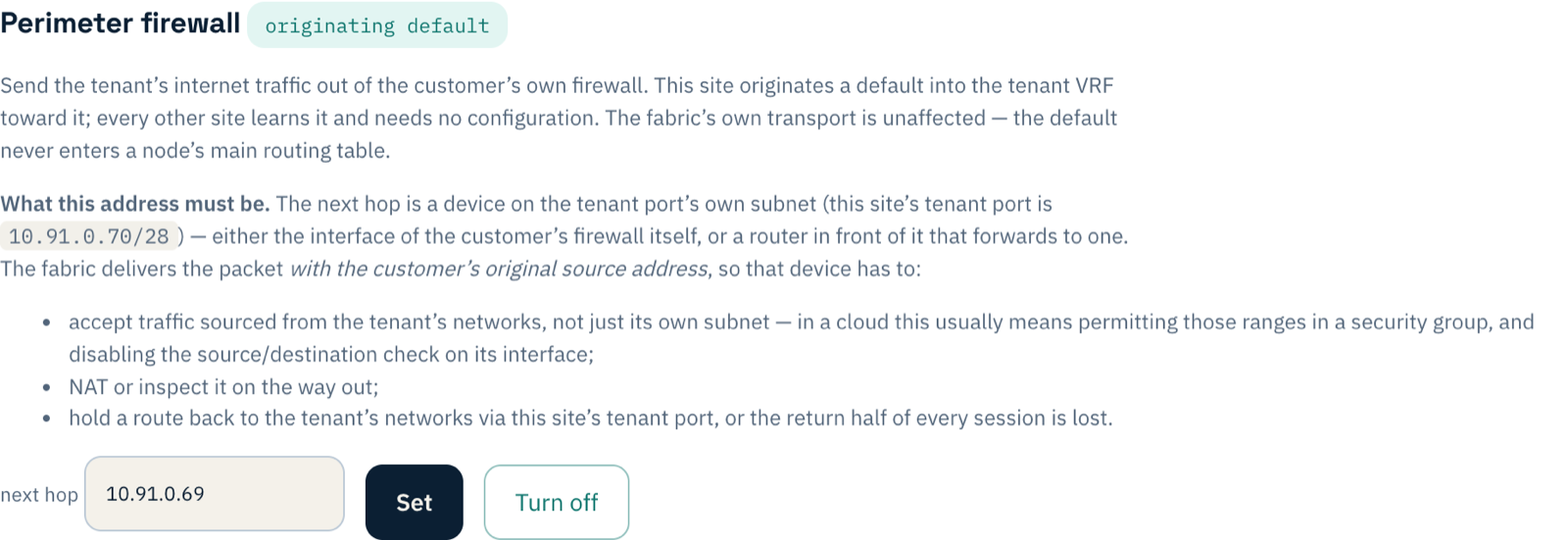
Nothing to do at the branch. It learns the route from head office.
4. Try it
The branch PC, asking every ten seconds which address the internet sees it at:
12:27:14  no internet
12:27:27  18.130.105.180
12:27:38  18.130.105.180
18.130.105.180 is head office's firewall. The branch has no internet connection of its own in this setup, so everything it does online now goes through head office's rules and logs, and arrives from head office's address. The firewall's own counter showed it handling the branch's traffic from that moment.
If something does not work
| What you see | What it means |
|---|---|
| Alert: "none is a route reflector" | Step 1: make a site a reflector. |
| The branch reaches head office's network but not the internet | The firewall is dropping traffic from the branch's range, or not NATing it: step 2. |
| Connections from the branch start but never complete | The firewall has no route back to the branch through the Weft box: the third line of step 2. |
| Perimeter refuses to be set | It needs a tenant port at that site first, and a next hop on the tenant port's own network. |
What you have now
Every office's internet leaving through one firewall you already run and trust, without a single setting at the branches. Add an office and it learns the same route from head office, with nothing set there either.