
Blog · Guide · · 4 min read
Add a second office, then pull the plug on the first
Join a second office to the first with one command, make it a standby hub, and watch what remote staff experience when the first office's box loses power. Timed, with screenshots.
In the first guide we turned a small box in one office into the place remote staff connect to. Now we add a second office, make its box a standby, and then do what everyone worries about: switch the first office's box off, and time what a laptop working from home goes through.
As before, every screenshot is from a real run, with public addresses masked. Two small cloud instances stood in for the office boxes and a Windows machine played the laptop; on real hardware the steps are the same.
What you need
- The first office set up as in the first guide: its box is the active hub.
- A second machine running Ubuntu 24.04 LTS at the second office, with internet access.
- UDP port 51820 reaching it from outside: a public address, or a port forward on that office's router.
1. Enrol the second office
Exactly as for the first: Add a Linux node, give it a site id, press Continue, and run the command it shows on the new box.

2. Watch the two offices find each other
There is no tunnel to configure. Each box tells Weft where it is, Weft tells each about the other, and they connect directly. The Overview shows both sites healthy.
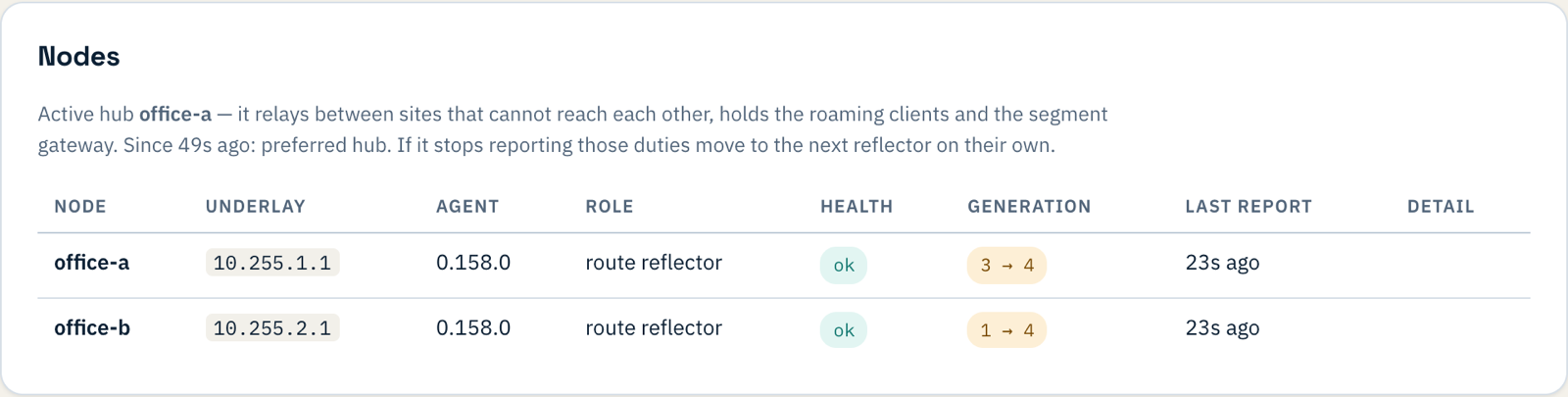
Paths shows the tunnel between them, measured from each end: round-trip time, loss and jitter, with the last hour as a bar per minute.

If both offices sit behind routers that translate ports and neither can be reached from outside, the pair talks through the hub instead, and Paths lists it under Relayed pairs. It still works; the port forward from step 1 is what makes it direct.
This joins the two boxes. Putting each office's existing network behind its box, so a laptop can reach the printer at the other office, is done with a tenant port on each site, and gets a post of its own.
3. Make the second office a standby hub
Open Sites, then the second site, and under Route reflector press Make a reflector. It becomes a standby hub: it carries a copy of every route, so losing the first office's box no longer takes the network's routing with it, and it is ready to take the remote devices.
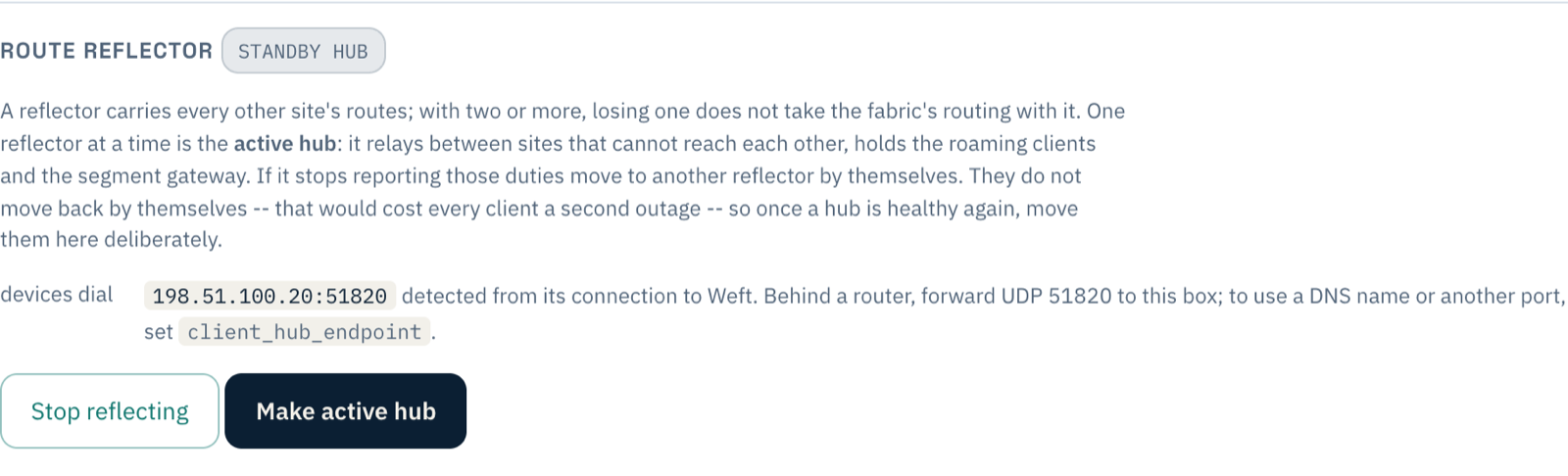
There is nothing to tell the devices. Each hub's address is detected from its own connection to Weft, so a device that needs to move already knows where the standby is. If the second office is behind a router, forward UDP 51820 to its box, as for the first. Prefer DNS names? Set client_hub_endpoint under Settings and it takes over.
4. Pull the plug
With a Windows laptop connected through the first office, we stopped that office's box without warning, as if its power had gone, and logged what the laptop could reach every five seconds.
| Time | What happened |
|---|---|
| 0:00 | The first office's box loses power. |
| 0:14 | The laptop can no longer reach either office. It was reaching the second office through the first, so both went at once. |
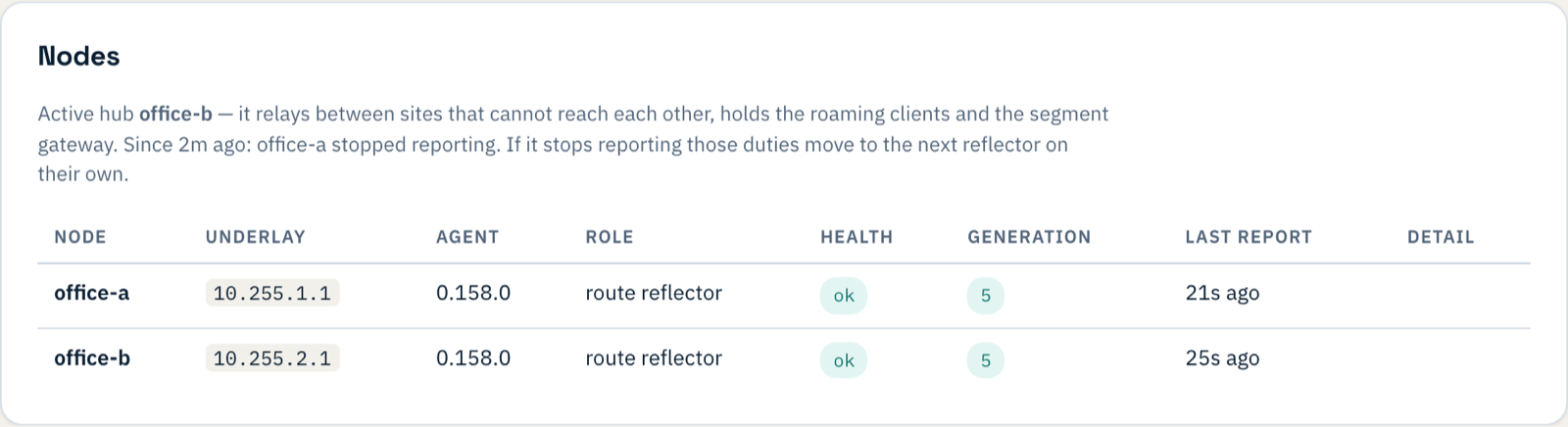
| 1:31 | Weft notices the first box has stopped reporting and makes the second office the active hub. |
| 2:03 | The Weft app notices its hub is gone, fetches a fresh profile, and reconnects to the second office. Nobody touched it. |
| 2:34 | The laptop reaches the second office again. |
So about two and a half minutes without the network, ending on its own. The Overview says what happened and why:
and Clients shows the laptop now connected through the second office:

The failover needs the Weft app, for macOS or Windows: it is the app that notices the hub has gone and fetches the new one. A device using a plain WireGuard configuration file stays pointed at the first office until it comes back.
5. Bring the first office back
When the first box returns it rejoins by itself; in our run the two offices were talking again within a minute of it booting. It came back on a different public address, and Weft picked up the new one without anyone typing it in. What it does not do is take the remote devices back. Moving them would cost everyone a second interruption, so Weft leaves that to you: once you are happy the first box is healthy, open its site and press Make active hub.
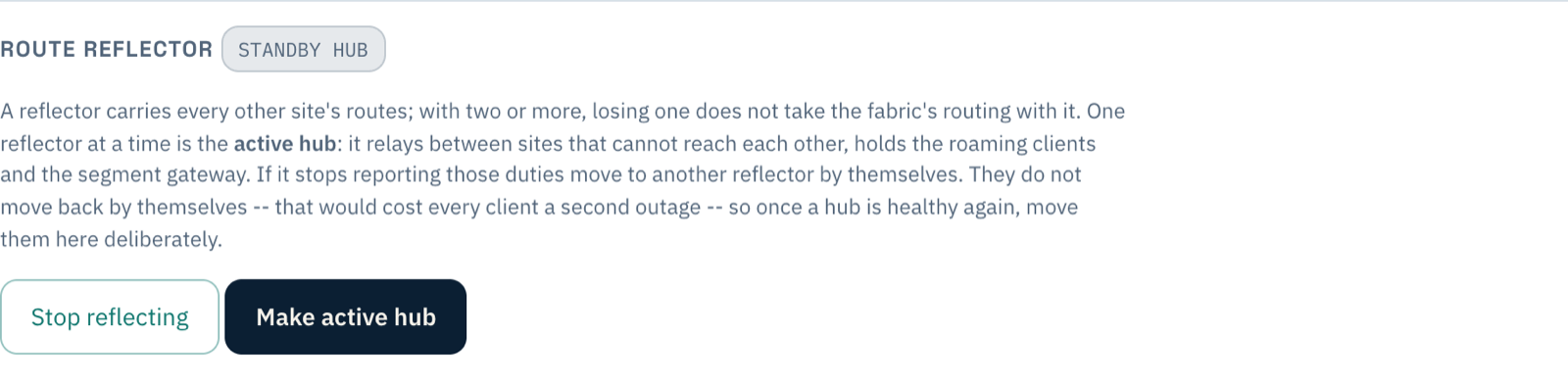
We moved the duties back and forth deliberately; each time, the laptop was showing as connected through the new hub within a minute or so.
What you have now
Two offices on one network, each able to carry the remote devices, and a failure of either box that costs remote staff a couple of minutes rather than a day. A third office is the same steps again; the trial covers three sites. For more on how it fits together, see how Weft works and branch office networking.