
Blog · Guide · · 4 min read
Reach the printer at the other office
Put each office's own network behind its Weft box, so a PC in one office and a laptop at home can both reach a printer in the other. Real test, with timings.
In the last guide two offices' Weft boxes found each other, but only the boxes were joined. This time each office's own network goes behind its box, so the things people actually use, the printer, the file server, the till, are reachable from the other office and from laptops working away.
Every screenshot and timing is from a real run. Two small cloud instances stood in for the office boxes; a third machine on office A's network played the printer (a small web page reporting its toner), and a fourth on office B's network played a PC that tried to load that page every ten seconds.
What you need
- Two offices set up as in the first and second guides.
- A second network port on each box, plugged into that office's network. The first port stays as the box's way to the internet.
- Access to each office's router, to add one route (step 4).
In our test office A's network was 10.91.0.64/28 and office B's 10.91.0.80/28; yours will be something like 192.168.1.0/24. The two offices must use different ranges.
1. Plug each box into its office network
Connect the second port to the office switch. The box tells Weft about the new port by itself; in our run it appeared in the console within a minute, with the address it had been given.
2. Make sure the box knows which port is its internet
On Sites, check each site's WAN 1 port is set to its internet port, as in step 4 of the first guide. Until it is, the next step refuses every port: Weft cannot yet tell the internet port from the office one, and choosing the internet port by mistake would cut the box off with no way to tell it to undo that.
3. Hand the office network to the box
Open Tenant port, choose the site, and the console lists the ports you can use. With WAN 1 set, ours offered exactly one: the office port.

Pick it, check the address (it is filled in with the one the port already has, which is normally right), and press Apply. Then do the same at the other office.
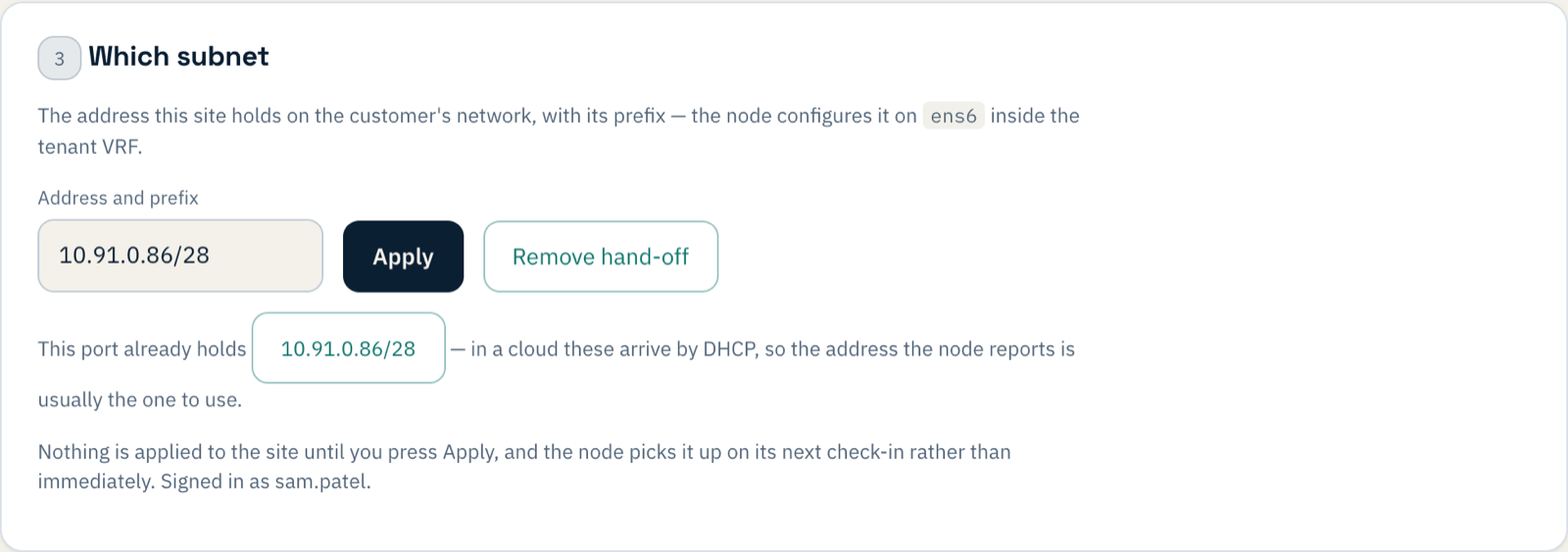

Each office now tells the other where its network is. Nothing to configure for that: the boxes exchange it themselves.
4. Tell each office's router about the other office
This is the one step outside Weft. Machines in office B send everything that is not local to their usual gateway, the office router, so the router needs to know that office A's network is reached through the Weft box. On office B's router, add a static route:
office A's network (e.g. 192.168.1.0/24) via office B's Weft box (its office-port address)and the mirror image on office A's router. Add one more for roaming devices, 10.252.0.0/24 via the box, so replies to laptops working away find their way back. If your routers speak OSPF or BGP, the site's page can run either with them instead, and the routes are exchanged without typing them in.
5. Try it
We finished applying both tenant ports at about 09:42. Office B's PC, trying the printer every ten seconds, timed out at 09:42:54, 09:43:22 and 09:44:04, then at 09:44:28 got the page back in 9 milliseconds.
About two and a half minutes from Apply to working. Most of that is Weft rolling the change to one office first, checking it, then the other, which is what it does with every change, so a mistake reaches one site rather than all of them.
Then a laptop working from home. We added it the usual way, with an invitation, and changed nothing else. Its tunnel already included both office networks, and the printer answered:
AllowedIPs = 10.255.0.0/16, 10.50.0.0/16, 10.252.0.0/24, 10.91.0.64/28, 10.91.0.80/28
printer at office A (10.91.0.75): HTTP 200  Office A printer  Status: ready. Toner 62%.
Laptops on a split tunnel send only the offices' networks through Weft, so this is the same list a split-tunnel device gets: the two office ranges were added because the boxes had announced them.
If something does not work
| What you see | What it means |
|---|---|
| Tenant port refuses every port: "WAN 1 port is not set yet" | Step 2: set the site's WAN 1 port first. |
| The office port is not listed | The box has not reported it yet. Check it is plugged in and the link light is on; it appears within a minute or so. |
| Laptops reach the other office but office PCs do not | Step 4: the office router has no route to the other office's network through the box. |
| One direction works, the other does not | The route is missing on the other office's router: replies have no way back. |
What you have now
Two office networks joined, a printer at one usable from the other, and laptops working away reaching both without being told about either. Each step reached one office first and was checked before it reached the next. For more on how the pieces fit, see how Weft works and branch office networking.