
Blog · Guide · · 4 min read ·
Launch a Weft site in your own AWS account, with one line or two
Add a site, choose AWS, and a filled-in CloudFormation form opens in your account. Tick one box and the site gets a second internet line from first boot. We timed it.
If your offices already use AWS, or you want a site in the cloud beside them, Weft can build one in your own AWS account. You add a site in the console, choose AWS, and a CloudFormation form opens in your account with everything filled in. A few minutes later the new site joins your network on its own.
Since this week the same form can give the site two internet lines: a second network card with its own fixed address, there from first boot, so the line choices on the Local breakout page apply to a cloud site exactly as they do to an office with two lines.
What it builds
- A small network of its own, and one Ubuntu 24.04 machine on a Graviton
t4g.smallwith a fixed public address (an Elastic IP). - Only the encrypted tunnels are let in (UDP 51820 and 51821). There is no SSH: Weft manages the machine, and nobody needs to log in to it. The disk is encrypted and the instance metadata service is locked to its safer mode.
- On first boot the machine installs Weft, uses the one-time code to join your organisation, and deletes the code. The code travels as a hidden stack parameter and is never shown in the AWS console.
- With A second internet line set to yes: a second network card and a second fixed address, both present from the first boot so both keep their addresses.
Everything is one CloudFormation stack, so removing the site from AWS later is deleting that one stack.
1. Add the site
In the console, open Add a site, give it a name, and under This machine choose should be made in my AWS account. Pick the region nearest the site and press Open AWS to launch.
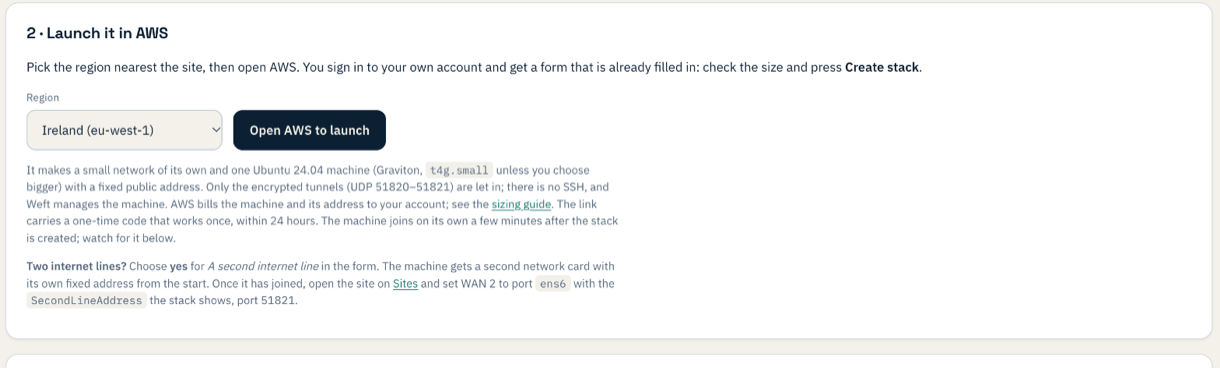
2. Check the form, and choose one line or two
AWS asks you to sign in to your own account and shows a quick-create form that is already filled in: the site's name, your console's address and the hidden code. Two things are worth a look before you press Create stack: the instance size, and A second internet line, which defaults to no.
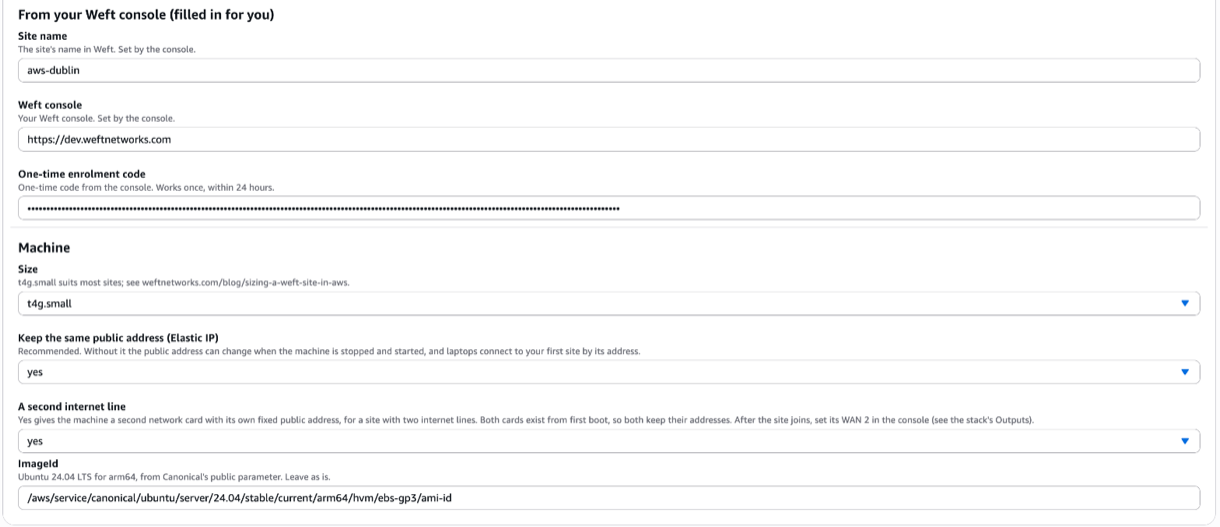
3. Create, and wait a few minutes
CloudFormation builds the network first, then the machine. In our test the stack reported complete 61 seconds after we pressed Create, the site had joined our network 40 seconds after that (1 minute 41 seconds from Create), and its tunnels to our other two sites were up within the following minute.
The stack's Outputs tab shows the site's public address and, with two lines, a second one labelled SecondLineAddress.
4. Two lines: tell the site about the second one
The first line needs nothing from you. For the second, open the site on the Sites page and set WAN 2 to port ens6 with the SecondLineAddress from the stack's outputs, port 51821. The site brings up its second set of tunnels within a minute, and from then on the Paths page shows both lines to every other site.
In our test the second line's tunnels to both of our other sites were up about a minute after we set WAN 2, at the same 10 ms as the first line. On the Local breakout page the site now counts as a two-line site, so each service can be sent out of line 1, line 2 or whichever is measuring better.
What it costs
AWS bills the machine and its addresses to your account, not to Weft. A t4g.small is about $14 a month on demand, plus a small charge for each fixed public address. The sizing guide says when to pick something bigger.
If something does not work
| What you see | What it means |
|---|---|
| The stack fails with a limit error | Most often the region's VPC limit (five by default). Pick another region in the console's list, or ask AWS to raise the limit. |
| The stack completes but the site never appears | Open the instance in EC2 and choose Get system log: the serial console shows each step of the install as weft-enrol: lines, ending with the exit code. A one-time code is valid once, for 24 hours; mint a new one from Add a site if it has expired. |
| Line 2 shows as down after you set WAN 2 | Check the address and port 51821 against the stack's SecondLineAddress. If a firewall in front of your other sites pins the 51821 port to addresses, add the new one. |
What you have now
A Weft site in your own AWS account, built from a form, joined without anyone logging in to it, open to nothing but its tunnels, and, if you ticked the box, carrying two internet lines from its first boot.