
Guide · Connecting offices
Connect two offices over the internet
You have two offices, each with its own broadband, and you want them to behave like one network: a PC in one reaching the printer or file server in the other, staff working from home reaching both. Here are the usual ways to do it, what each asks of you, and how it works with Weft, using screenshots and timings from a real test.
The options
A private line from your provider
A leased line or MPLS service joins the offices over the provider's own network rather than the public internet. It is predictable and the provider looks after it, but it is the most expensive option, it is ordered per office, and it ties you to that provider for every site.
A VPN between the two office routers
Many business routers can build an IPsec tunnel to another router. If both offices have a router that supports it, this costs nothing extra. It usually needs at least one end with a fixed public address, both ends have to be configured to match, and each further office means another tunnel to configure by hand on more than one router. When it stops working, the router's logs are where you look.
A mesh VPN such as Tailscale or NetBird
These put a client on each laptop and server, and those devices find each other directly. They are very good at connecting people to machines. To reach things in an office that cannot run the client, such as printers and phones, one office machine acts as a gateway for that network: Tailscale calls it a subnet router, NetBird a routing peer. Joining two whole office networks so their devices reach each other in both directions takes extra steps in each: Tailscale's site-to-site guide has the devices on each network use the subnet router for the other office's addresses, unless it is already their default gateway. We compare them in more detail in NetBird, Tailscale or Weft?
A site-to-site network such as Weft
Weft starts from the office rather than the device. Each office has one small Linux machine running the Weft agent. That machine becomes the office's gateway to the other offices, over encrypted WireGuard tunnels across whatever broadband the office already has. Staff away from the office use an app on their Mac, Windows or Linux computer. Everything is set up from one web console, and each change is tried on one site first before it reaches the rest.
How it works with Weft, step by step
We set this up from scratch to time it. Two small cloud machines in AWS London stood in for the two office boxes, called london and leeds. Behind each was an office network with one device on it: a PC at London, and at Leeds a small web server standing in for a network printer, showing a status page. Every screenshot below is from that test.
1. Add each office from the console
On Add a Linux node, name the site and copy the one-line installer onto the office machine. It installs the agent, generates the machine's own key (only the public half is sent), and joins the organisation. The first office you add becomes the hub, so it should be the one that can accept incoming connections on UDP port 51820.
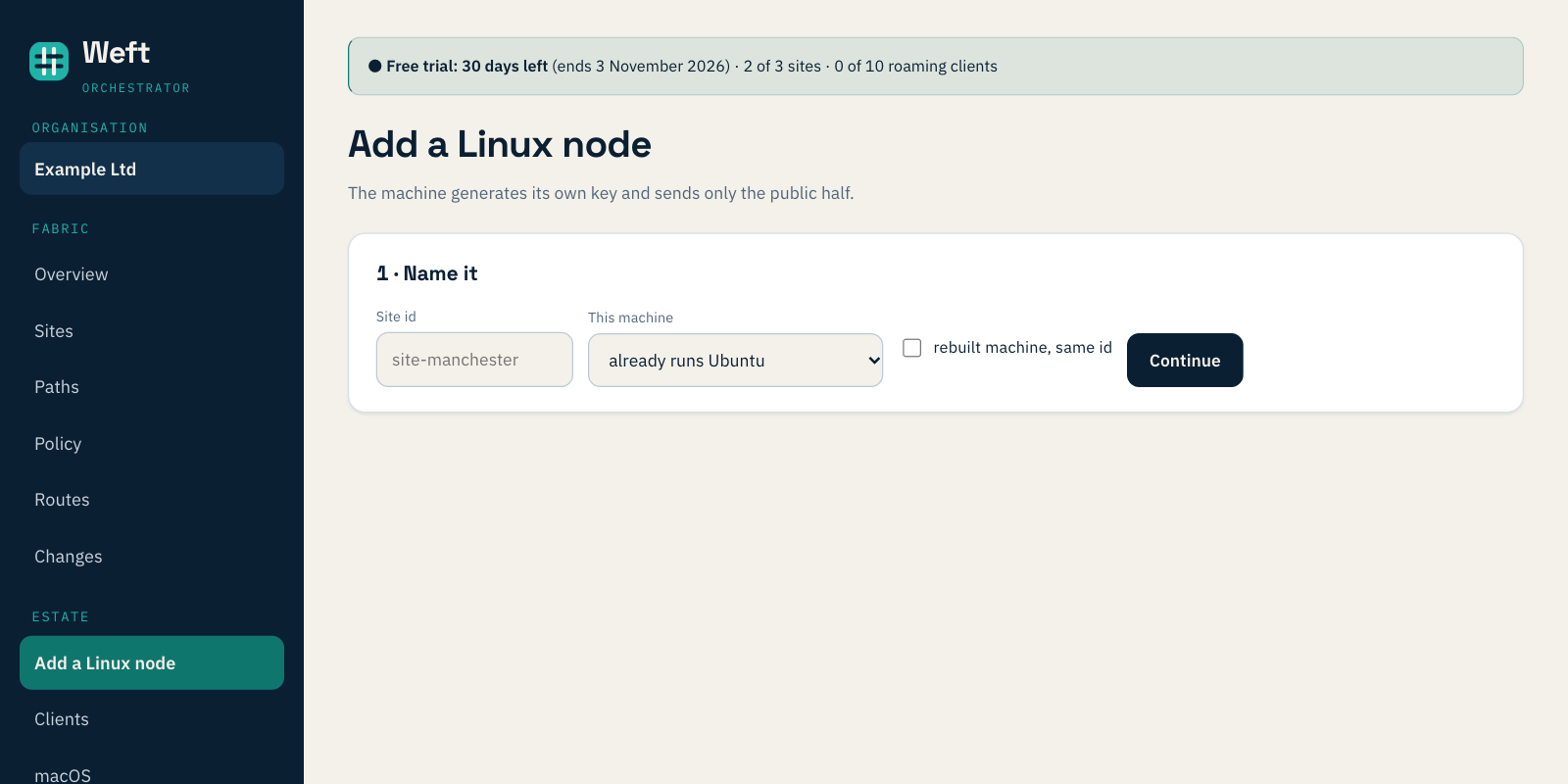
In our test, London's installer finished in 4 minutes 4 seconds and Leeds's in 2 minutes 33 seconds, from asking the console for the install line to the machine reporting in.
2. Tell each box which port faces the office network
Each box has two network ports: one to the internet, one into the office. On each site's card, choose the internet port and give the office port the box's address on that network. That is the whole of the configuration on the Weft side; the two networks are then routed to each other, with their real addresses, without translation.
3. Point the office devices at the box
Devices in one office need to know that the other office's addresses are reached through the Weft box. Usually that is one route added on the office router. If the Weft box is the office's gateway, there is nothing to add. In our test we added the route on the two devices themselves.
4. Use it
The PC at London then loaded the printer's status page at Leeds by its ordinary address. Across twenty pings the round trip averaged 1.1 ms, and the page loaded in 2 to 6 ms. Those numbers are low because both test machines were in the same London data centre; between real offices, expect the latency of the two broadband lines.
From the first click to the PC loading the printer's page took 9 minutes 3 seconds, including both installers. About two minutes of that was the office network settings being applied, which in Weft goes to one site first and to the other once the first reports healthy.
An office without a fixed address, or behind someone else's router
The Leeds box in our test was allowed no incoming connections at all, which is the position of an office whose router has no port forwarded to it. It did not need any: Leeds connected out to London, and the tunnel between them came up direct. The Paths page showed the link up in both directions, with a round trip of 0.6 ms, and no relayed pairs.
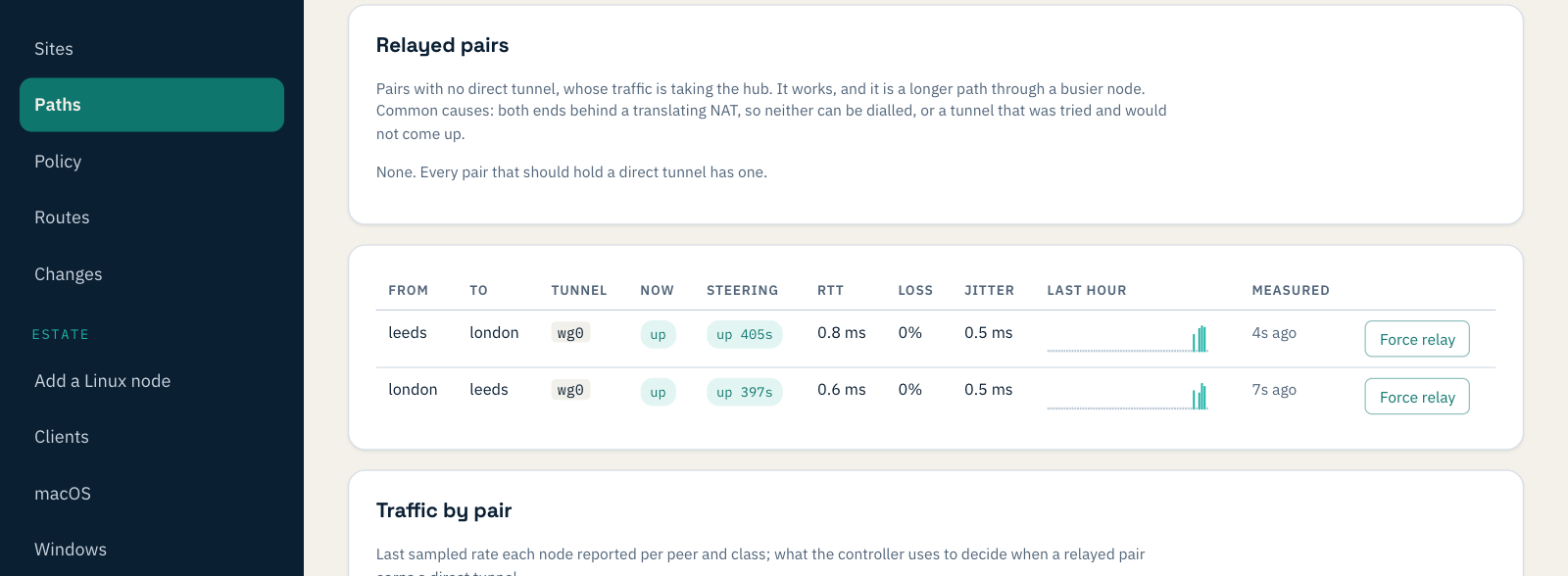
When two offices both sit behind routers that rewrite their ports, as some home and mobile connections do, neither can reach the other directly. Their traffic then passes through the hub, which is one of your own offices rather than a relay run by somebody else, and the pair is listed under Relayed pairs so you can see it.
Where the internet traffic goes
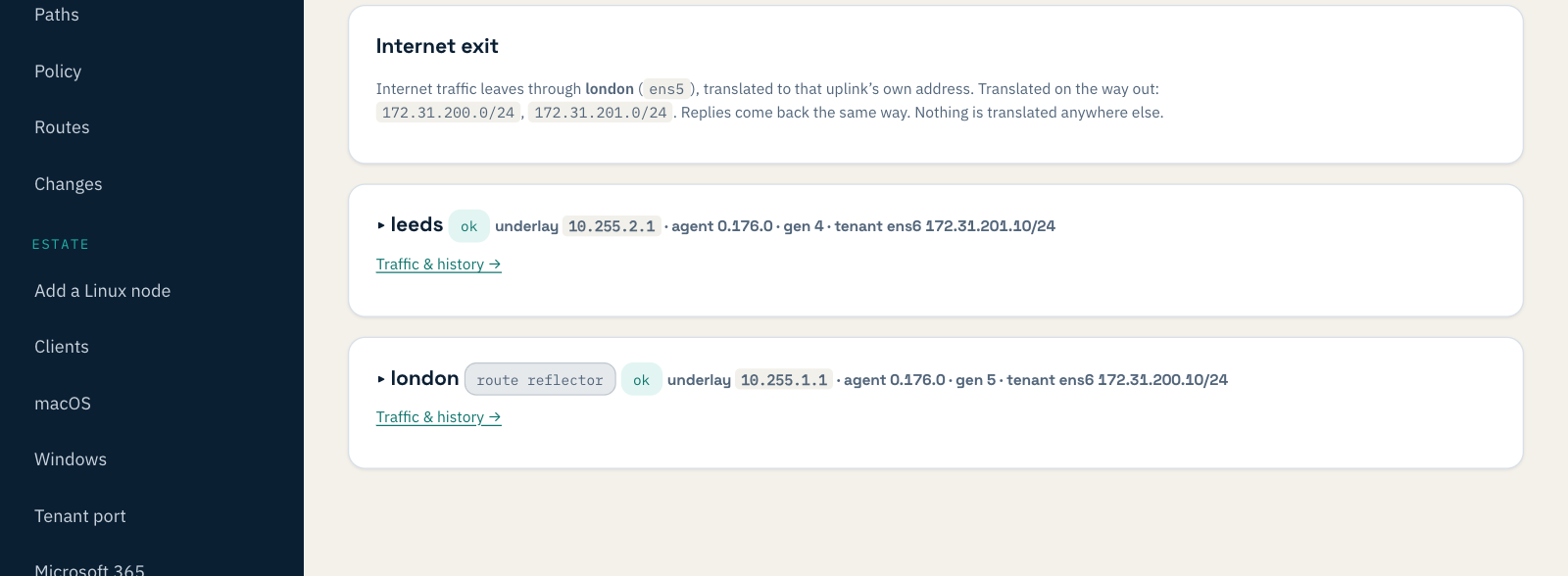
Devices that still use the office router as their gateway keep using that office's broadband for the internet; only traffic for the other office goes to the Weft box. If the Weft box is the devices' gateway, decide where their internet leaves: make one office the internet exit, or hand the traffic to your own firewall. Until you choose, the console says plainly that there is no way out. Leaving from one place also helps when a supplier's system only allows one address. In our test we made London the exit, and the printer at Leeds then reached the internet from London's address.

There is more on this in where your internet leaves, and what gets translated.
Working from home
Staff away from the office install the Weft app on their Mac, Windows or Linux computer and join with an invitation. They connect to the hub office, as the other office does, and can then reach both offices' networks. Nothing beyond the hub's one port needs opening.
What it costs
Weft is £30 per site and £4 per roaming client a month, excluding VAT, with every feature on one plan. Two offices and five people working from home would be £80 a month. The free trial is 30 days, for up to three sites and ten roaming clients, with no card. You bring the office machines: a small computer with two network ports that runs Ubuntu 24.04, and there is nothing to buy from us.
Further reading
- Branch office networking, including two internet lines per office.
- Reach the printer at the other office, the same set-up in more detail.
- Where your internet leaves, and what gets translated.