
Blog · Guide · · 4 min read ·
Look round a working Weft console without signing up
One click opens the console of a made-up company with four sites, six devices and a day of traffic. No account and nothing to install. Look at almost anything; change nothing.
Until now, seeing Weft meant committing to it first. You made an account, then found a box to run a site on: a Linux machine, a cloud instance or a container. Only then did the console have anything to show you. And the console of a brand-new organisation is, quite rightly, empty. That is a lot to ask of someone who only wants to know what the thing looks like.
So there is now a demo. One link opens the console of a small company, already running, with no account, no form and nothing to install. You can open nearly every page a customer sees. You cannot change anything.
What is made up, and what is real
The company is made up. Northwind Trading (demo) has a London office, a Manchester branch, a server network in AWS and one person working from home. Its people, devices, addresses and traffic are all invented. Every address is a private or documentation one, every email address ends in .example, and the devices' keys are made up, so nothing can ever connect as one of them. The traffic follows a London working day: a ramp from eight, a dip at lunch, quiet evenings and weekends.
The console is real. It is the same console, running the same code, that our customers use. It reads the demo company the same way it reads theirs. Nothing on the pages was drawn for the demo. The only differences are the banner at the top that says it is one, and a few buttons and pages that are hidden because they would only change things.
A quick tour
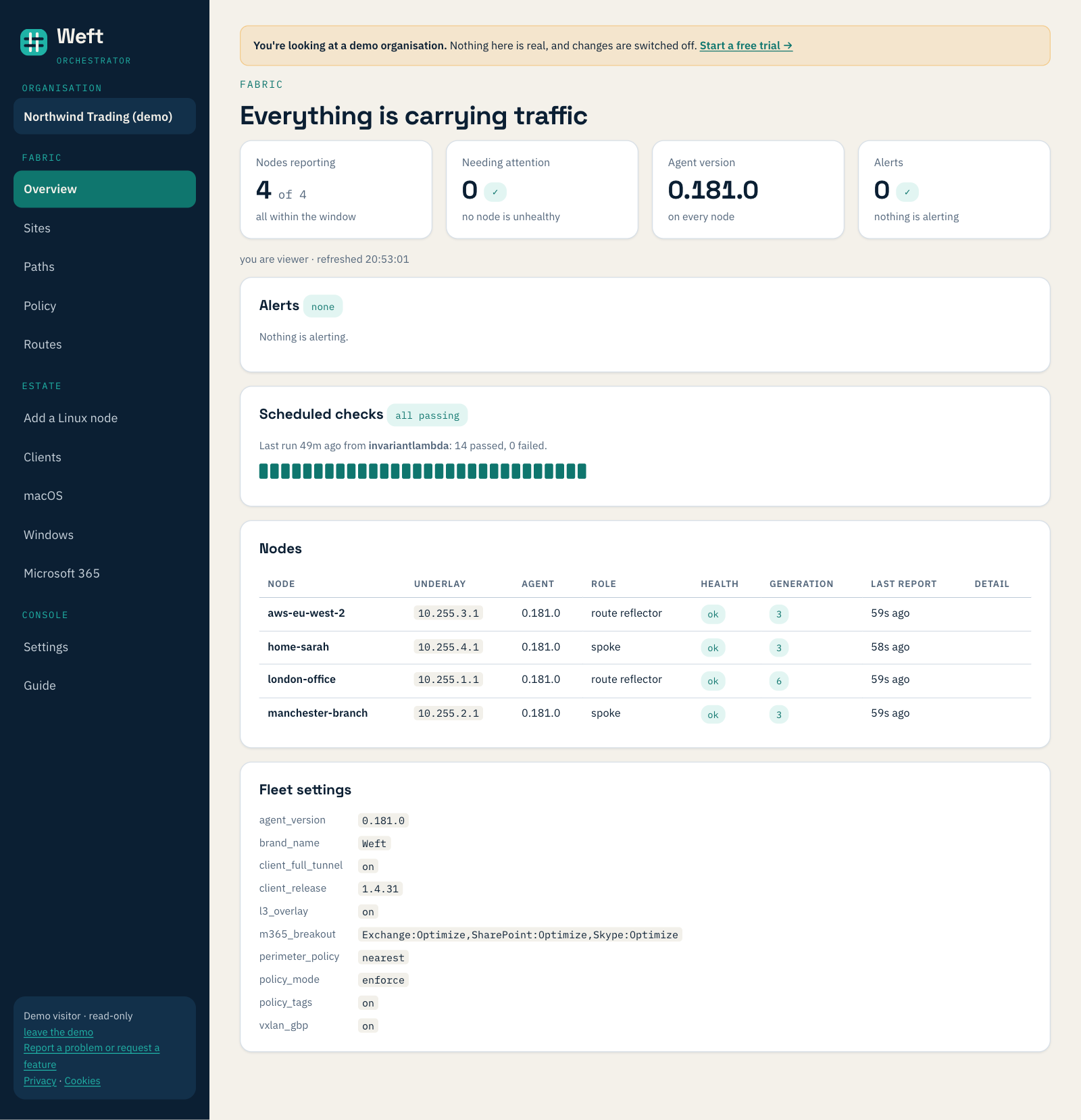
Overview is the first thing you see: four sites reporting, nothing needing attention, the scheduled checks passing.
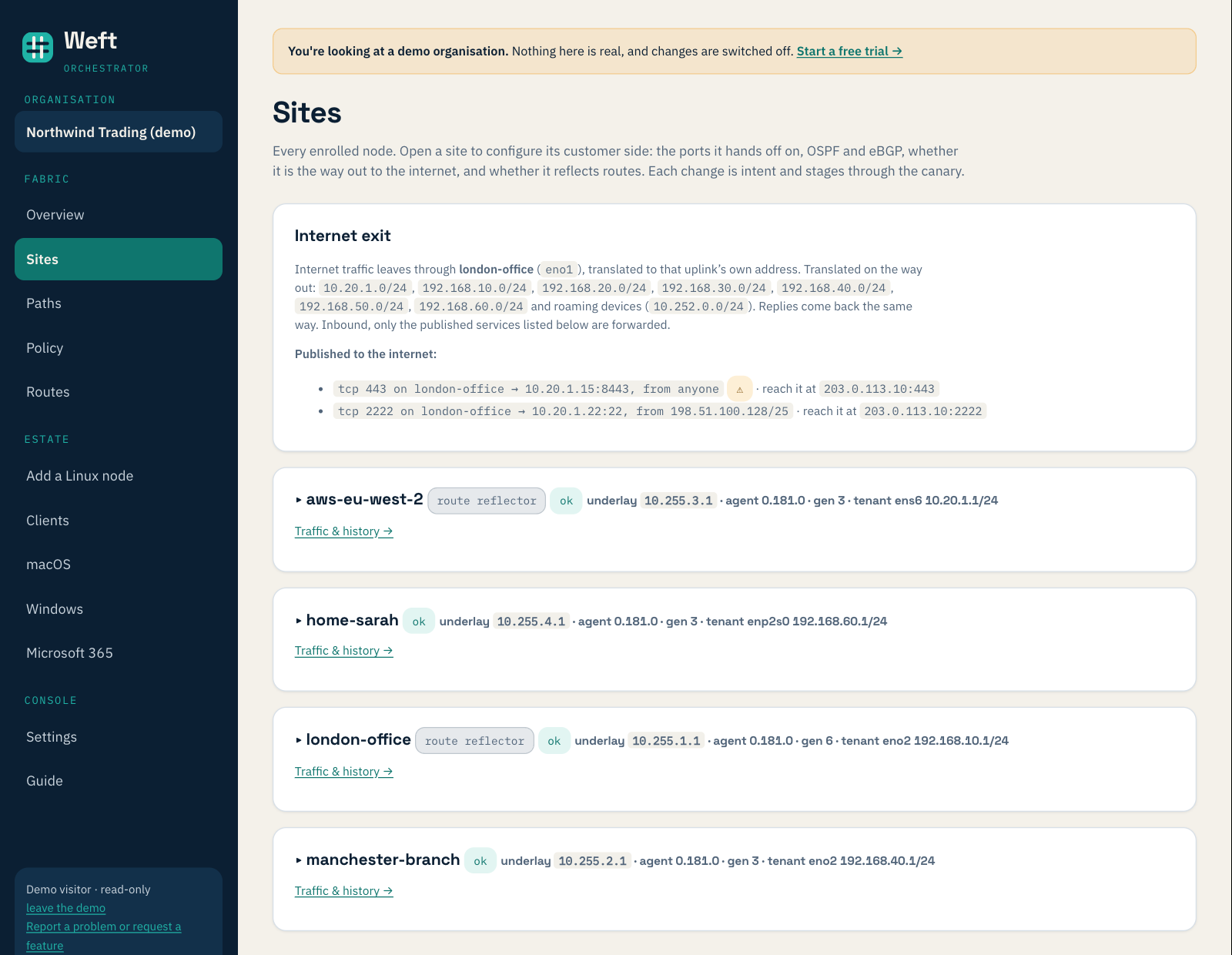
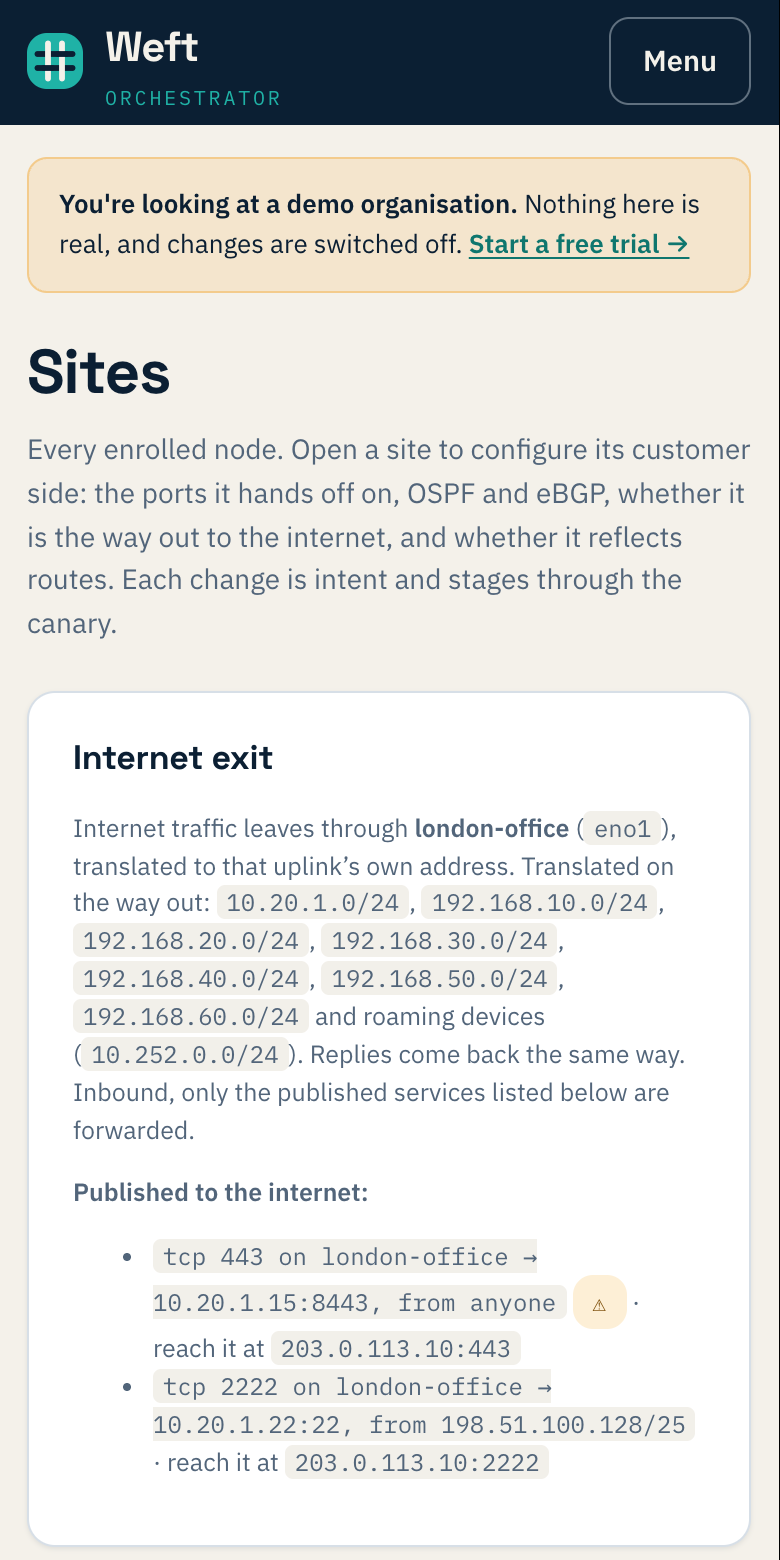
Sites lists the four sites. At the top it says where the company's internet leaves: through the London office, translated to that line's own address. It also lists two published services, things inside the network that can be reached from the internet. One is open to anyone and carries a warning; the other is limited to one range of addresses.
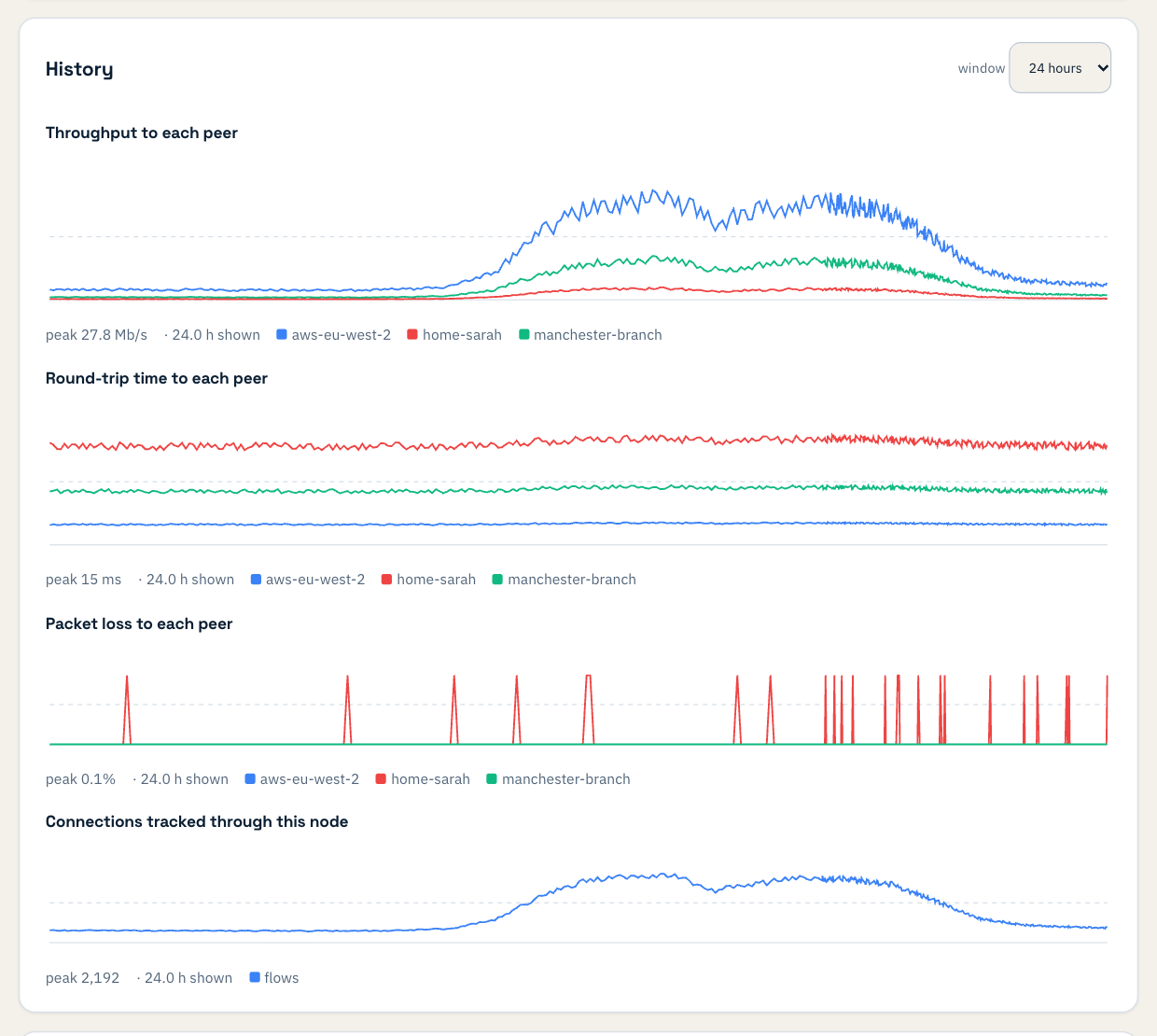
Open a site with Traffic & history and you get its graphs: throughput, round-trip time and packet loss to each of the other sites, and the connections passing through it. Here is the London office over 24 hours, quiet overnight and busy through the working day.
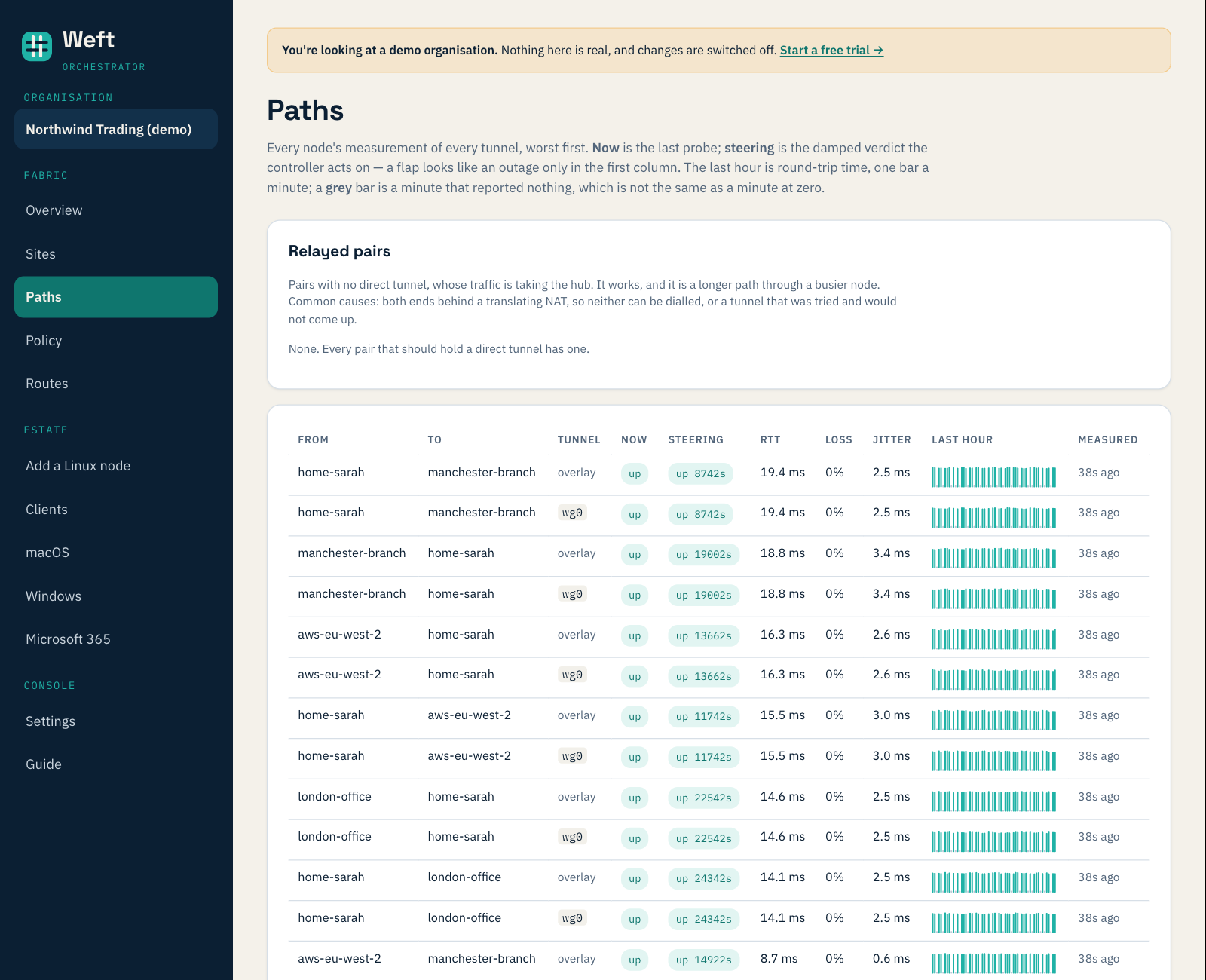
Paths shows every site's measurement of every tunnel, worst first, with the last hour of round-trip times as a small bar chart. It also tells you if any pair of sites is having to go the long way round, through a hub. In the demo, none is.
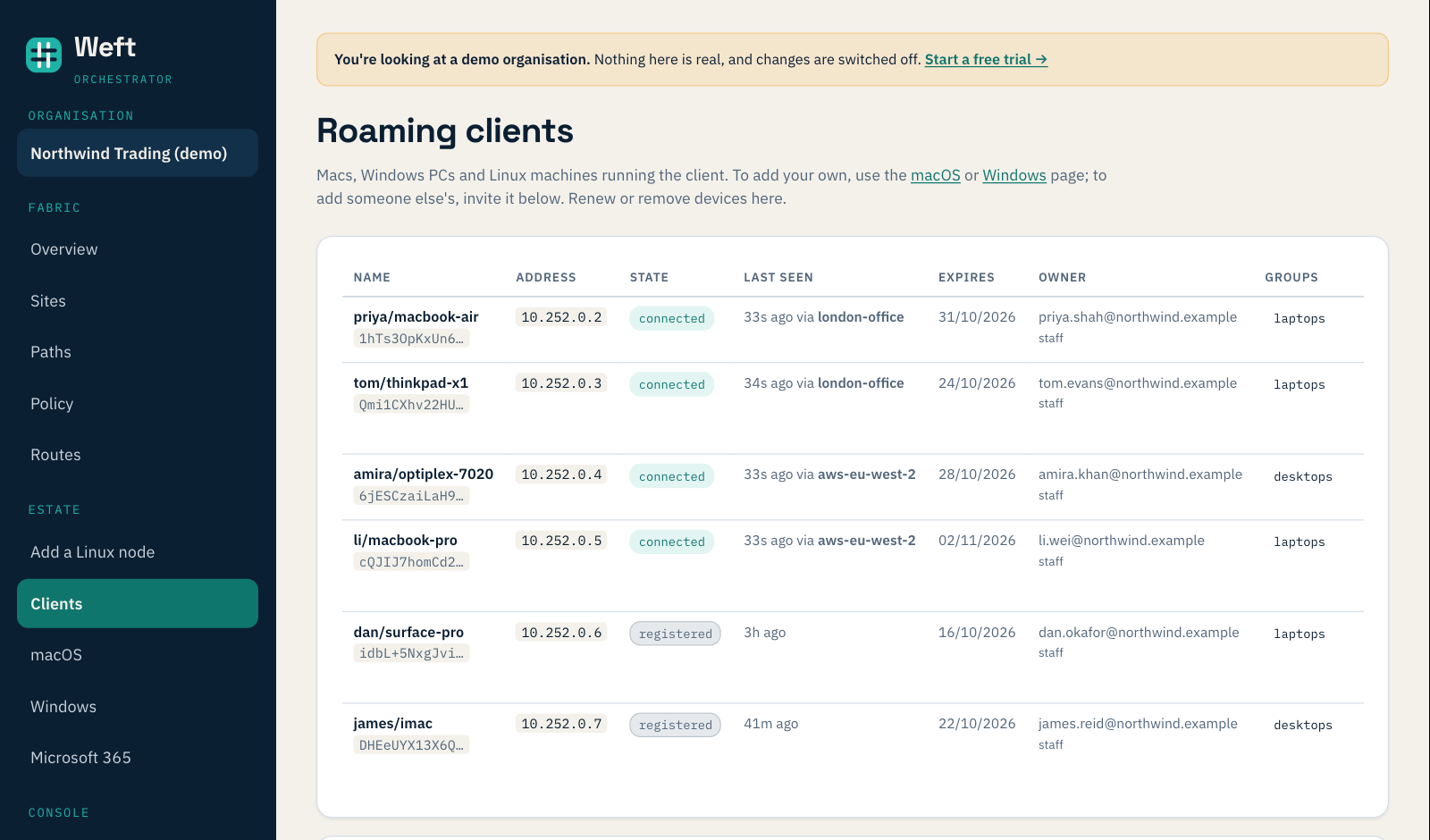
Clients lists the laptops and desktops that connect from wherever they are: four laptops and two desktops, each with its owner, when it was last seen and through which site, and when its access expires.
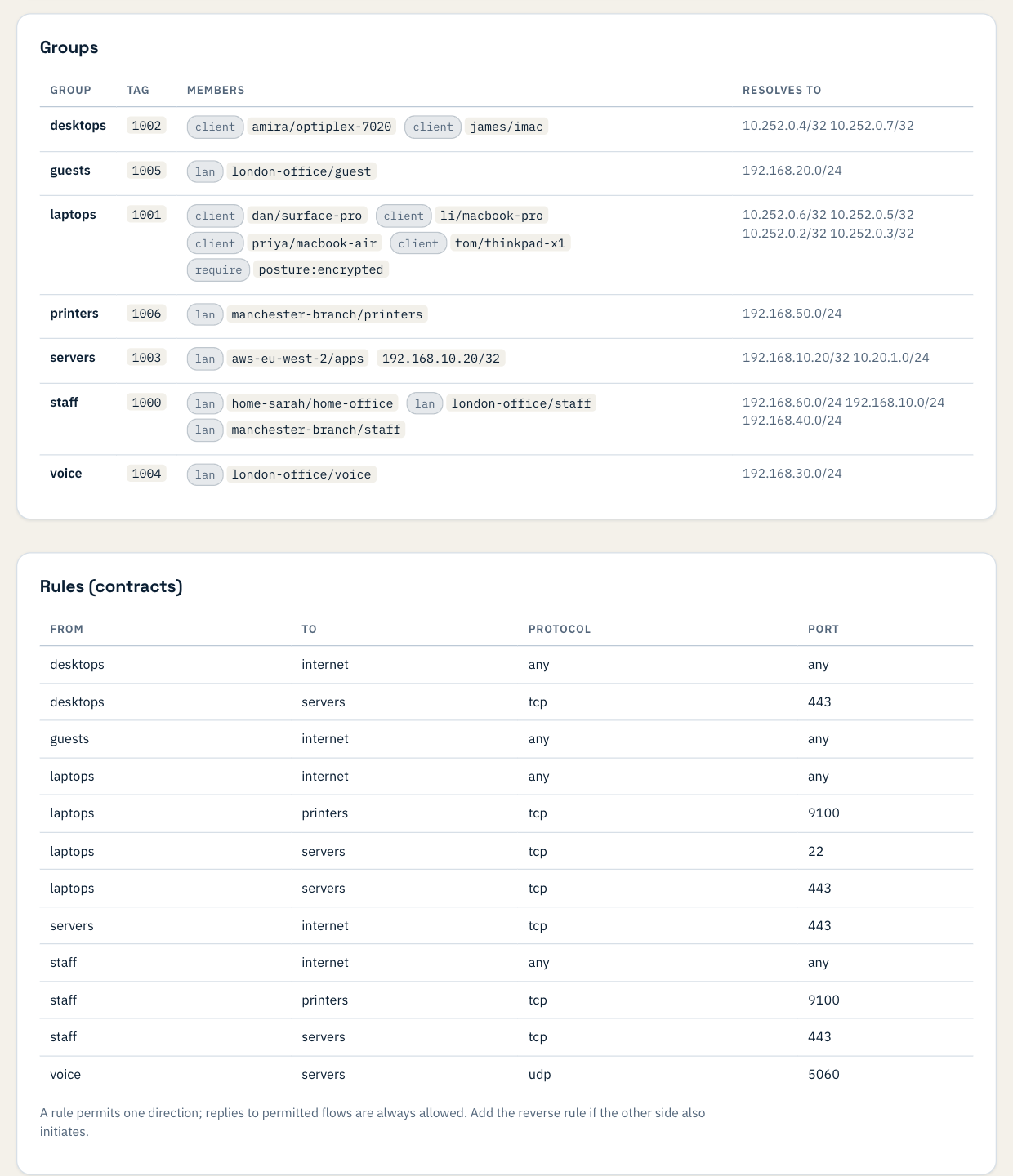
Policy is where you decide who can reach what. The demo has seven groups, such as staff, guests, printers and servers, and twelve rules (we call them contracts) between them, switched on and enforced. Guests can reach the internet and nothing else; laptops can reach the servers on two ports; the voice network can reach the servers on one port, the one call set-up (SIP) uses, and nothing else. The laptops group only admits laptops whose disks are encrypted.
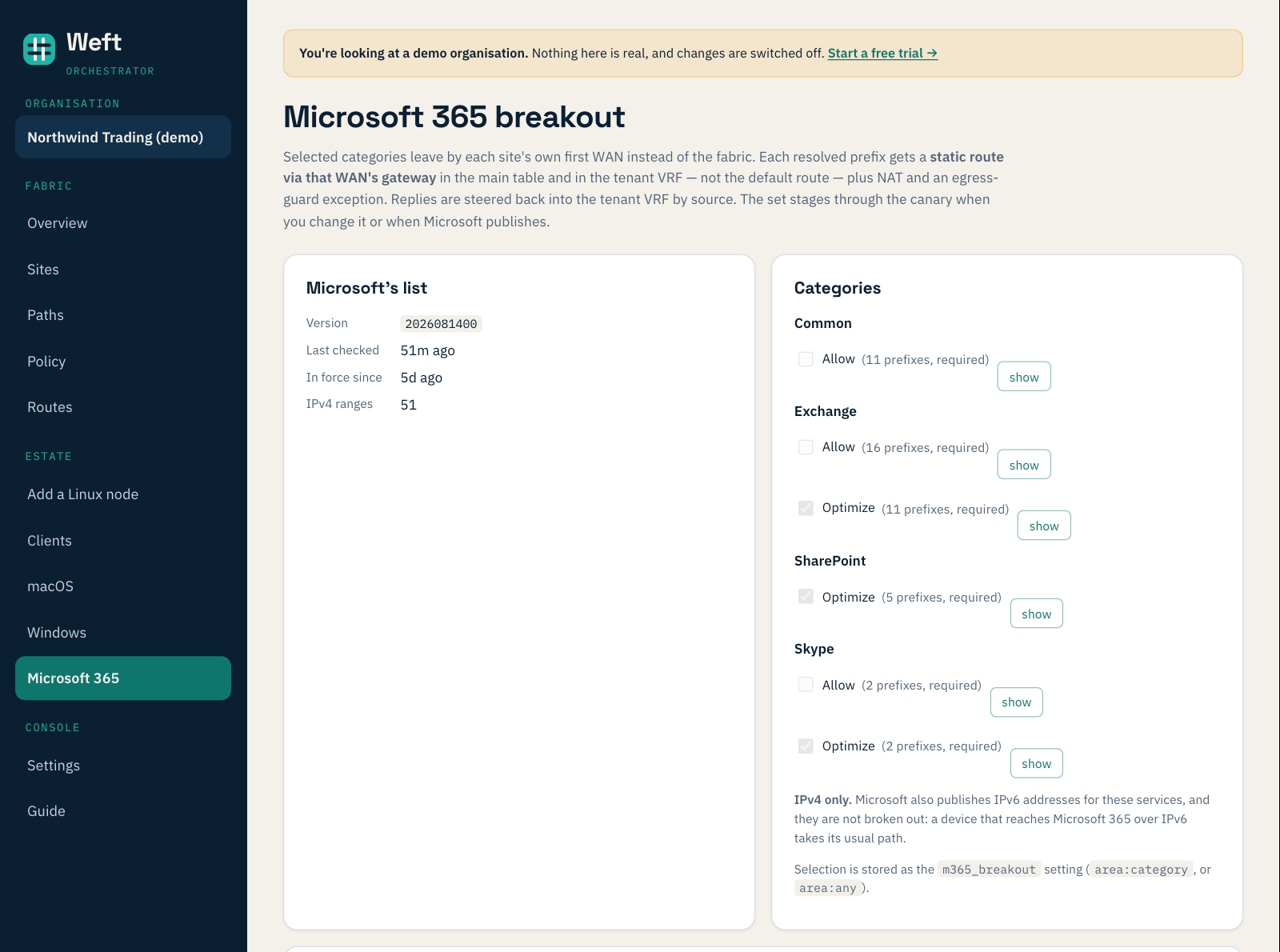
Microsoft 365 shows local breakout: Microsoft's own list of addresses, and which categories leave by each site's own line rather than travelling across the network first.
It works on a phone, too.
How "read-only" is kept read-only
Greying out buttons is not protection. Anyone can send a request without pressing a button. So the demo is read-only on the server, not just on the page:
- The server refuses every change. Whatever the request, if it would change something and it comes from the demo, the answer is no, before it reaches anything that could act on it.
- It refuses every secret, too. Some pages can create things you could use elsewhere, even just by looking: an invitation for a new device, the command that enrols a new site, a sign-in token, a device's configuration file, a download link. The demo gets none of them, and no audit log or diagnostic bundle either.
- A new page starts refused. The server keeps a list of what the demo may read. A page we add to the console next month is refused to the demo until somebody deliberately adds it to that list. Forgetting means "no", not "yes".
- It cannot see anyone else. A demo visit belongs to the demo company and nothing else. It cannot list, switch to or create another organisation, and it lasts an hour.
The console also hides the buttons that would change things, so you are not offered something that will only be refused. That is a courtesy. The server is the guard.
Try it
Open the demo console. It takes one click, and the banner's Start a free trial link takes you out of the demo and into sign-up when you have seen enough. Or start a free trial straight away: 30 days, three sites and ten roaming clients, with no card.