
Blog · Guide · · 4 min read ·
Ask for a code at every sign-in, and have laptops sign in again every few hours
Turn on Weft's own sign-in code for people who sign in with their work account, and choose how long a laptop stays connected before its owner signs in again: eight hours unless you say otherwise. Two settings, and what your people see on each device.
A laptop that joined your network in March is usually still on it in October, whoever has it now. That's convenient right up until the laptop is left on a train. Weft can now close that gap: people who sign in with their work account give a code from an authenticator app, and their laptops sign in again every few hours, eight unless you choose otherwise.
Both are settings in the Weft console. This guide assumes your organisation already signs in to Weft with Microsoft Entra ID (or Okta, or Google Workspace). If not, the top of the Settings page walks you through connecting it in four steps, which takes about ten minutes.
Step 1: turn on the sign-in code

In the console, open Settings, find idp_second_factor in the table, choose on and press Set.
From then on, after someone signs in with their work account, Weft asks for a 6-digit code before it lets them in. Turning it on signs out everyone who uses your organisation's sign-in, so the code applies straight away rather than at some later sign-in. Your own administrator account, and any local accounts, stay signed in.
What your people see
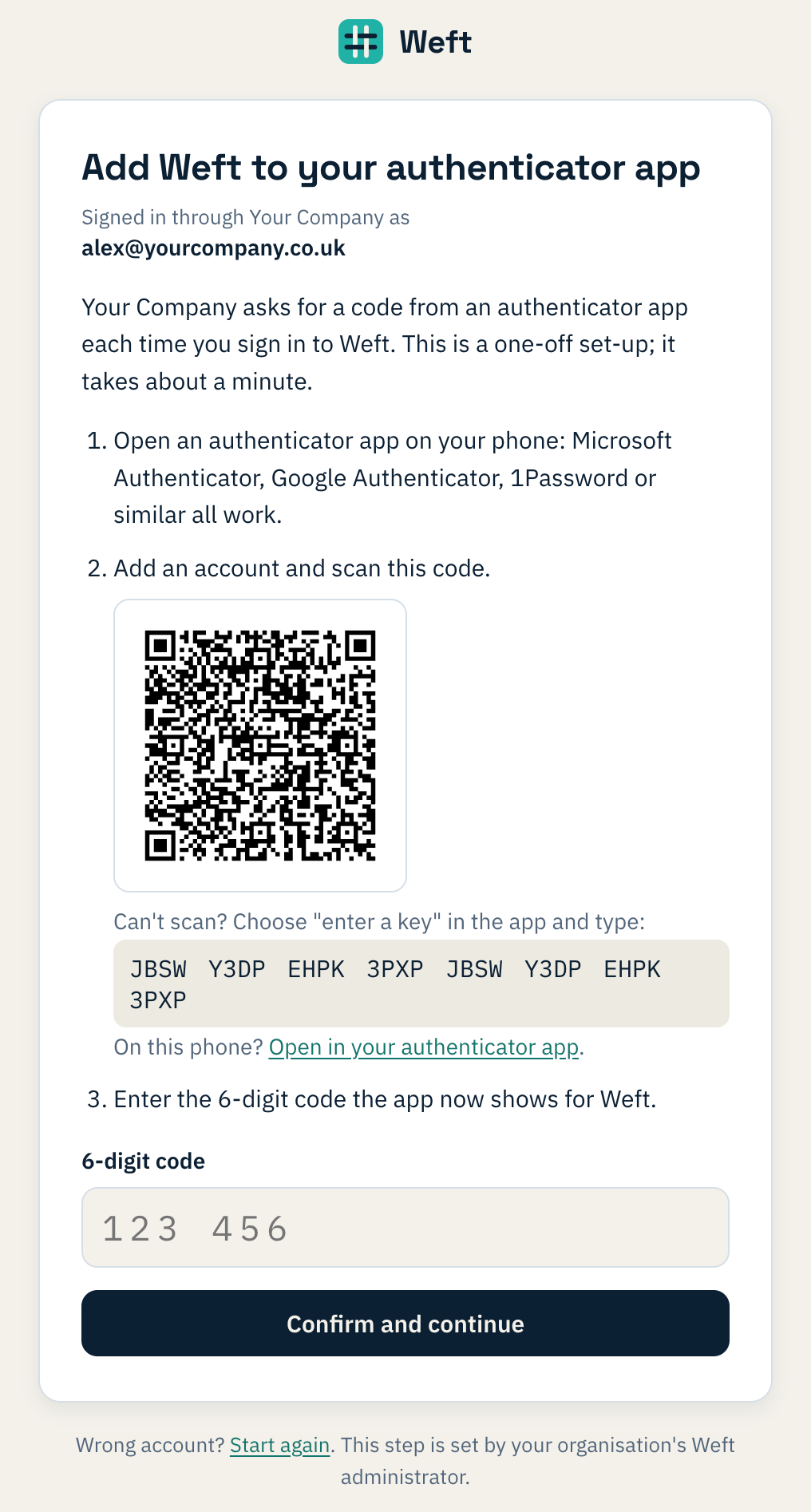
The first time, Weft shows a QR code. They scan it with the authenticator app they already use (Microsoft Authenticator, Google Authenticator and 1Password all work), type the code it shows, and get ten recovery codes to keep somewhere safe, such as a password manager. Each recovery code gets them in once if they lose their phone.
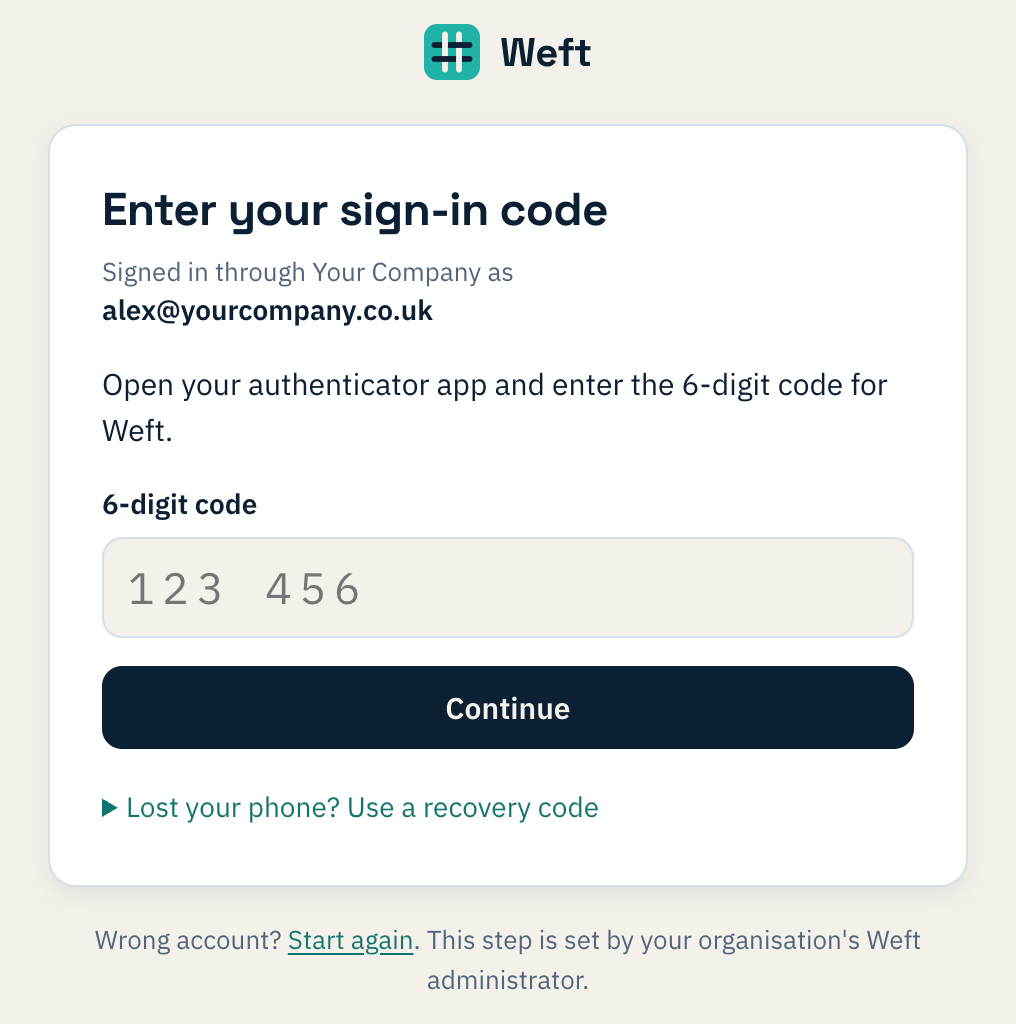
After that, every sign-in is the Microsoft sign-in followed by one code. If a phone is lost and the recovery codes with it, an administrator opens Admin → Accounts and presses Reset sign-in code; that person sets it up again at their next sign-in.
Step 2: choose how long a device stays signed in
With the code on, every laptop that belongs to someone who uses your organisation's sign-in must sign in again regularly. How regularly is client_sign_in_hours, in the same Settings table: a whole number of hours from 1 to 720. If you leave it empty it's 8, roughly a working day.
Change it, press Set, and each device gets the new length from its next sign-in. A device that's signed in now keeps the time it already has.
When you first turn the code on, those devices must sign in straight away, the same as their owners do in the console. Tell people before you switch it on.
What happens on the laptop
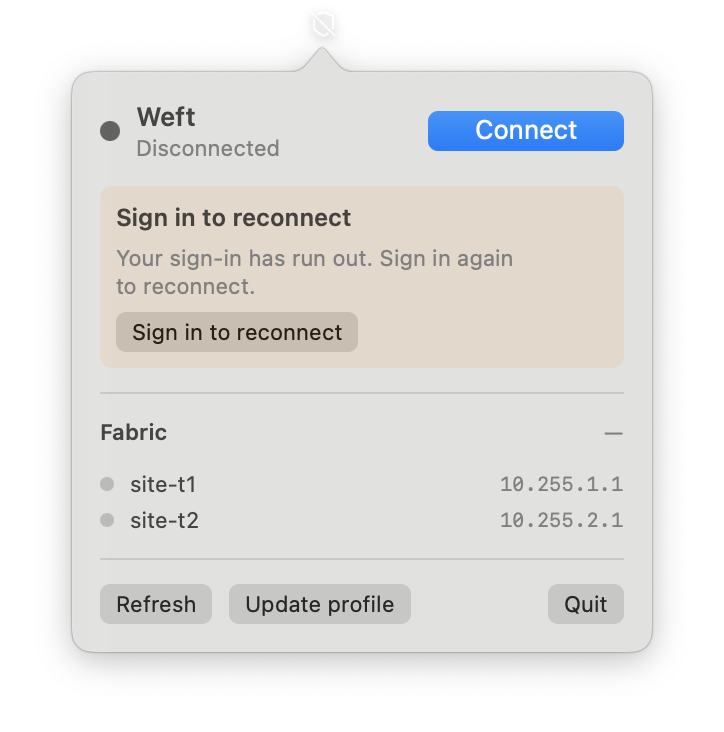
While a device is signed in, the Weft app says until when, for example Signed in until 17:30. At that time Weft takes the device off your network. The app disconnects itself at the same moment, so a laptop that sends all its traffic through Weft falls back to its own internet connection rather than losing the internet altogether. Then it shows Sign in to reconnect.
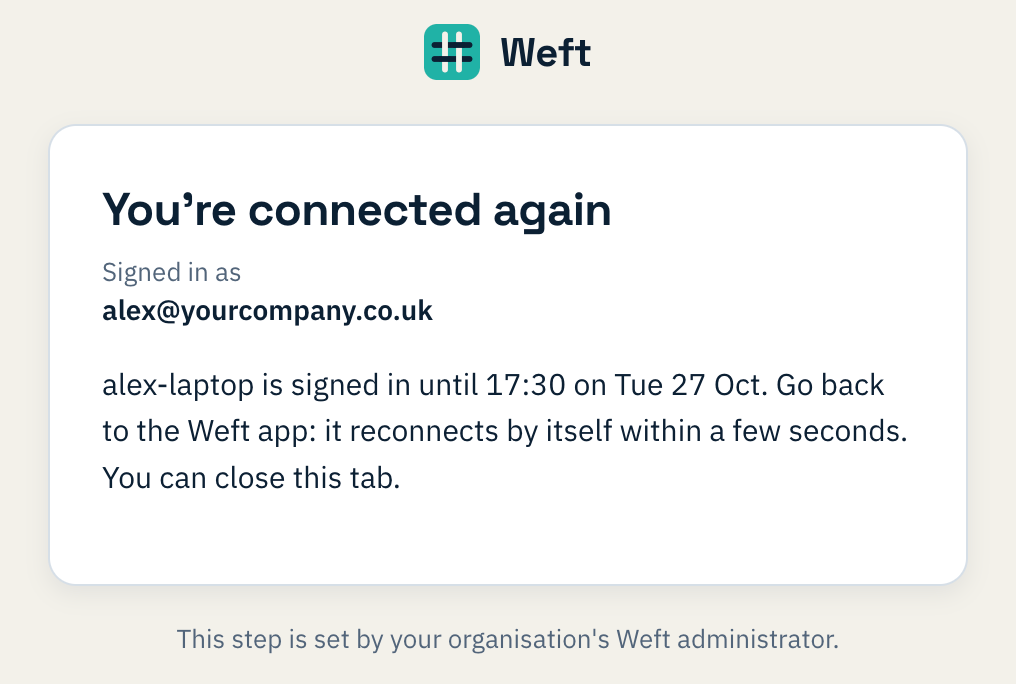
One press opens the browser at your organisation's sign-in. The person signs in, enters their code, and sees You're connected again. The app reconnects by itself, usually within a few seconds, and nothing needs copying. Weft only accepts the sign-in from the person the device belongs to, so someone else can't sign in a laptop that isn't theirs.
It works the same way on Mac and Windows (from the tray icon).
What isn't affected
- TVs and other shared devices paired with a code don't belong to a person, so they're never asked to sign in. Put them in a policy group of their own with only what they need.
- Devices an administrator issued without an owner are not asked either.
- People who don't use your organisation's sign-in, such as a local break-glass administrator, are unchanged.
Keeping an eye on it

The Clients page shows each device's state. A device waiting for its owner reads needs sign-in; a signed-in one shows until when. Every sign-in, wrong code, recovery code used and reset is in the audit log.

And Microsoft's own multi-factor?
Keep it. Weft's code doesn't replace your Conditional Access policy in Entra; it adds a check that Weft makes itself, whatever your Entra settings. Your Microsoft policy decides what happens at Microsoft, and Weft's code and the device time limit decide what happens on your network. If you turn the code off again, devices stop having to sign in, and nothing else changes.