
Blog · Guide · · 4 min read ·
Two-factor sign-in, and a sign-in page that looks like Weft
You can now ask for a six-digit code from an authenticator app after your password. Turning it on or off needs a fresh sign-in, so an unlocked computer is not enough. The sign-in page now carries Weft's colours and logo.
The Weft console is where you add sites, let laptops in and decide who can reach what. A password alone is a thin lock on that. If someone learns it, from a reused password, a phishing page or a note on a desk, they get the same access you do.
So you can now add a second step. After your password, Weft's sign-in page asks for a six-digit code from an authenticator app on your phone. Someone who has your password but not your phone cannot sign in. It is optional, each person turns it on for their own account, and it takes about a minute. As always, we tried it for real before writing this, on 4 October 2026, with a throwaway account in our test environment, which we deleted afterwards.
Who it is for
Two-factor sign-in here is for accounts that sign in with an email address and a password. If you sign in with Google, Google's own 2-Step Verification protects that sign-in, and My account says so instead of offering a setup that would protect nothing. If you sign in through your company's own login, your company's sign-in rules apply.
Turning it on
Open My account. The Two-factor sign-in card explains what it does and has a Set up button.
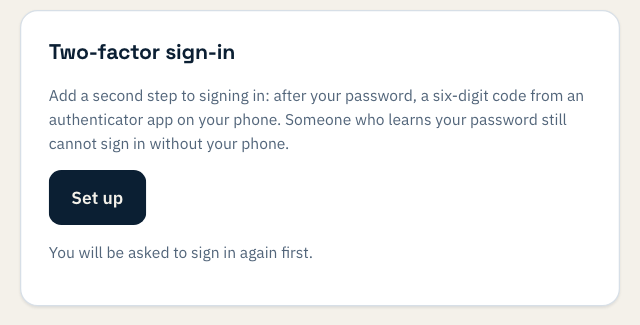
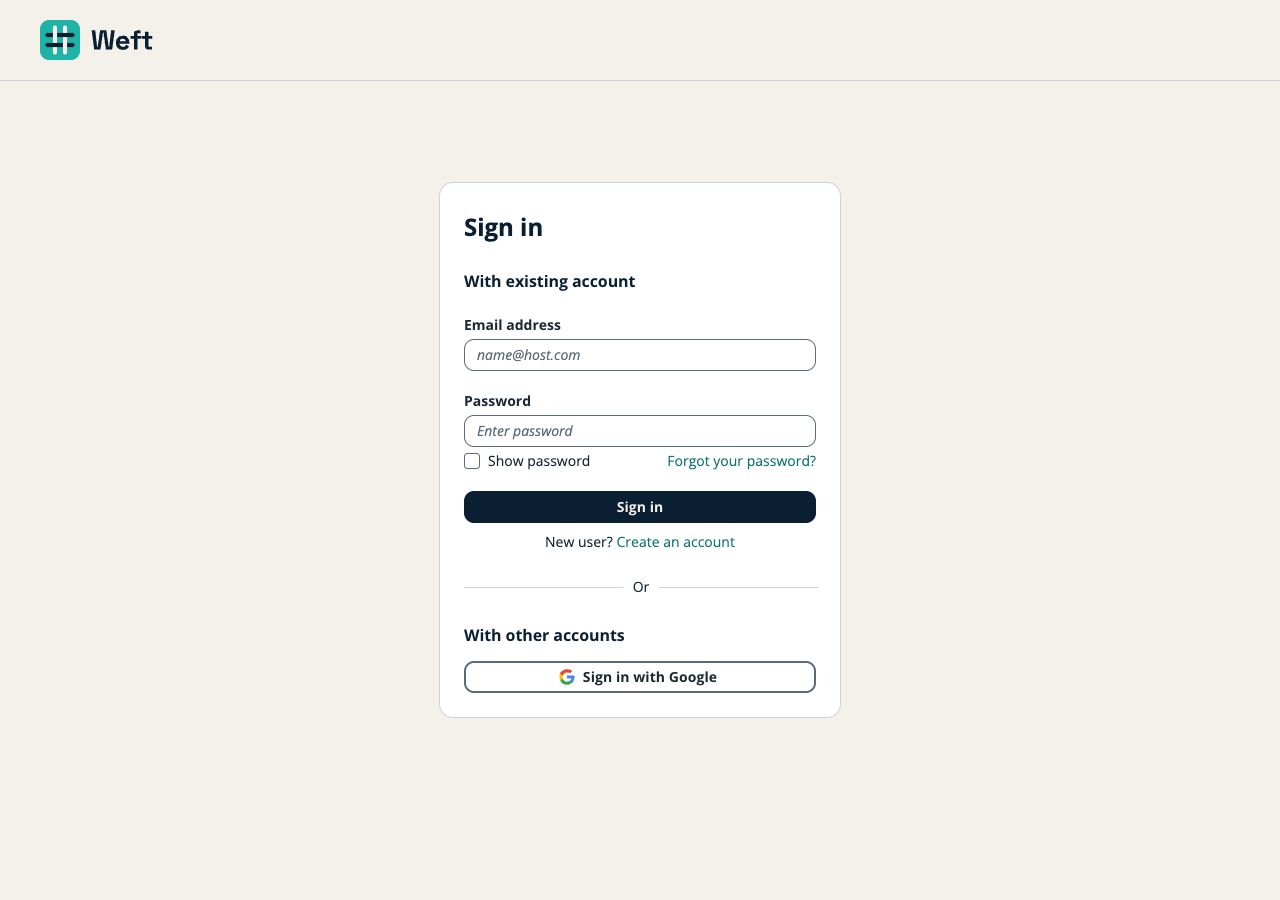
Set up first asks you to sign in again. This is deliberate. Changing how you sign in is exactly what someone at your unlocked computer would want to do, so being signed in already is not enough. Weft ends your session at the sign-in page before sending you there, so the page cannot wave you through on the strength of an earlier sign-in. It really asks for your password.
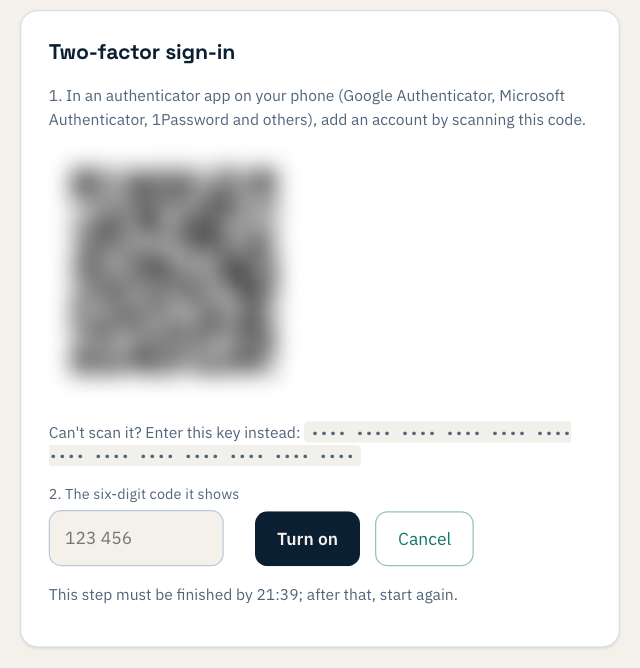
Back on My account, the card shows a QR code. Scan it with an authenticator app: Google Authenticator, Microsoft Authenticator, 1Password and others all work. If you cannot scan it, there is a key to type in instead. Then enter the six digits the app shows and choose Turn on.
A few details we were careful about:
- The fresh sign-in counts once, briefly, and only in that browser. It has to be made just then. It lets you finish the setup for ten minutes and is used up when you do. It is tied to the browser session you started from, so it cannot be used anywhere else.
- A mistyped code is not a dead end. Codes change every 30 seconds. If one does not match, enter the one showing now; if codes keep failing, check that your phone sets its clock automatically.
- It is in the audit log. Turning two-factor sign-in on, and off, is recorded in your organisation's audit log.
Signing in with it on
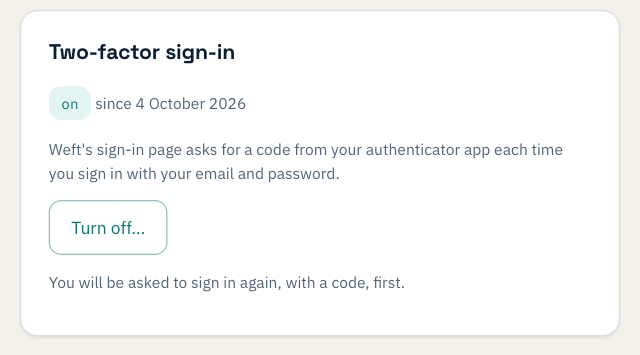
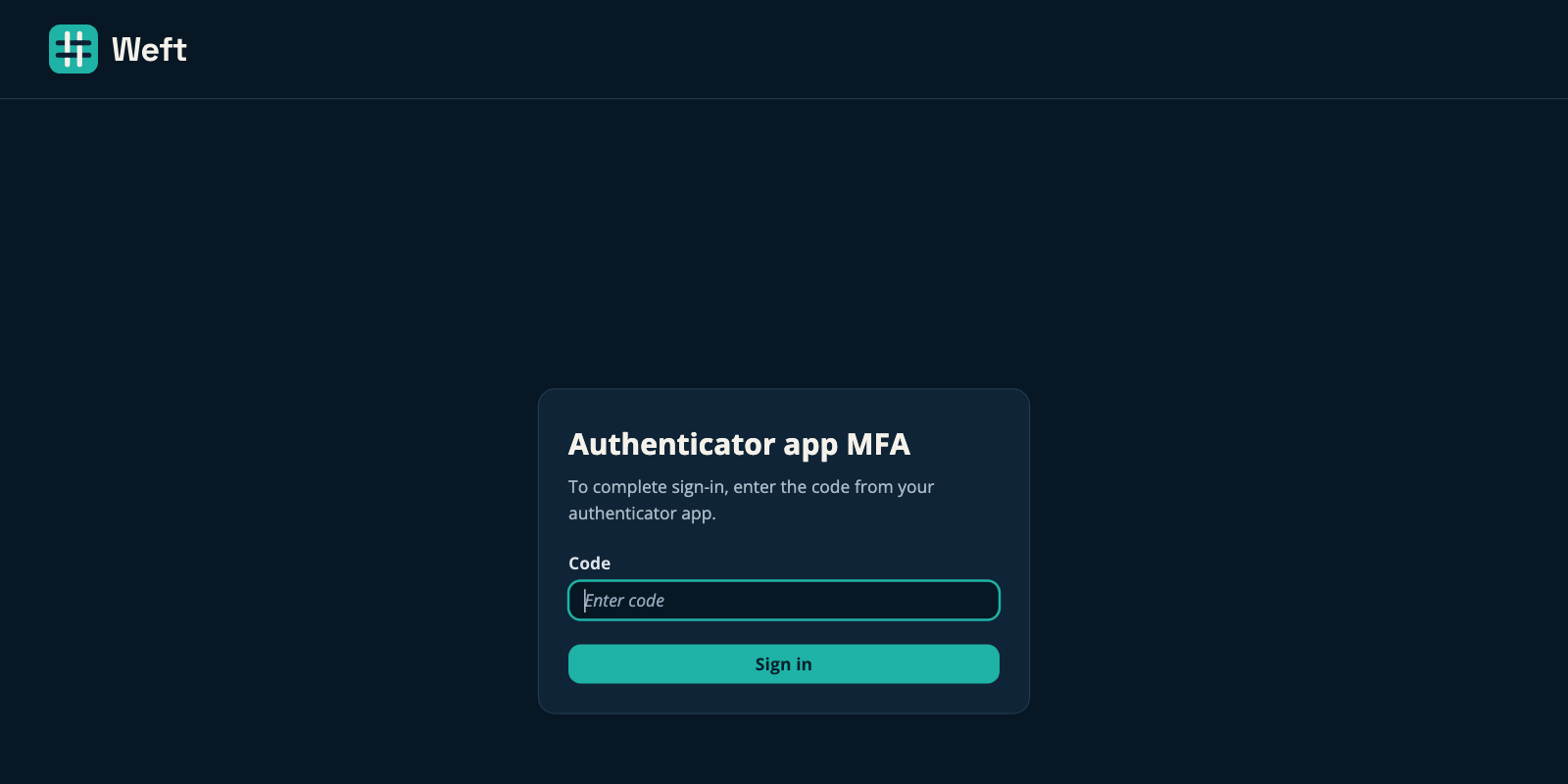
From then on, every sign-in with your email and password is followed by one more page that asks for the code from your app.
Turning it off
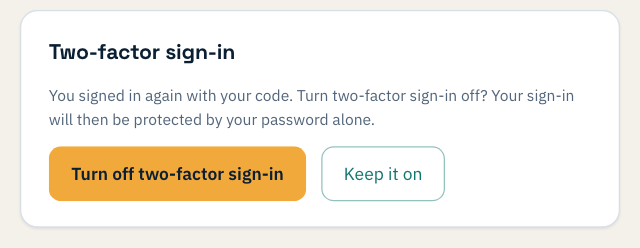
Turning it off is protected in the same way, with one more step: you sign in again, and because two-factor is on, that sign-in asks for a code as well as your password. Only then does My account offer to turn it off, and it asks you to confirm. Keep it on leaves everything as it was. So someone who finds your computer signed in still needs your phone to remove the protection.
What it does not do yet
- There are no recovery codes. If you lose your phone, or the app on it, you cannot sign in on your own. Contact us at support@weftnetworks.com. If you can, turn two-factor off and set it up again before you change phones.
- It is an authenticator app only. No text messages and no passkeys.
- It is each person's choice. An administrator cannot yet require it for everyone in an organisation.
A sign-in page that looks like Weft
You may have noticed that the sign-in page has changed. It used to be the sign-in service's own default page, in someone else's colours. It now carries Weft's colours and logo, and follows your device's light or dark setting, so the page where you type your password looks like the product you came from. It also has an address of ours, auth.weftnetworks.com, rather than the sign-in service's own long one, and the email form now comes first, with Google underneath. It is the same sign-in service underneath, and nothing about how your password is checked has changed. A few words on it, such as the heading on the code page, are the service's own and are not ours to change.