
Blog · Guide · · 4 min read ·
Sign in with your own Microsoft Entra ID, and let its groups decide who reaches what
Connect Microsoft Entra ID to Weft in four steps. Your people sign in with their work accounts, your Entra groups set their console role and can be used in network policy, multi-factor stays your own Conditional Access policy, and a test sign-in shows exactly what comes back before anything goes live.
Most organisations already keep one list of who works there and what they do: Microsoft Entra ID. Weft can use yours. Your people sign in to Weft with the work account they already have, and the Entra groups you already keep decide what they can do in the Weft console and, if you want, what they can reach on the network.
Four steps, on one page
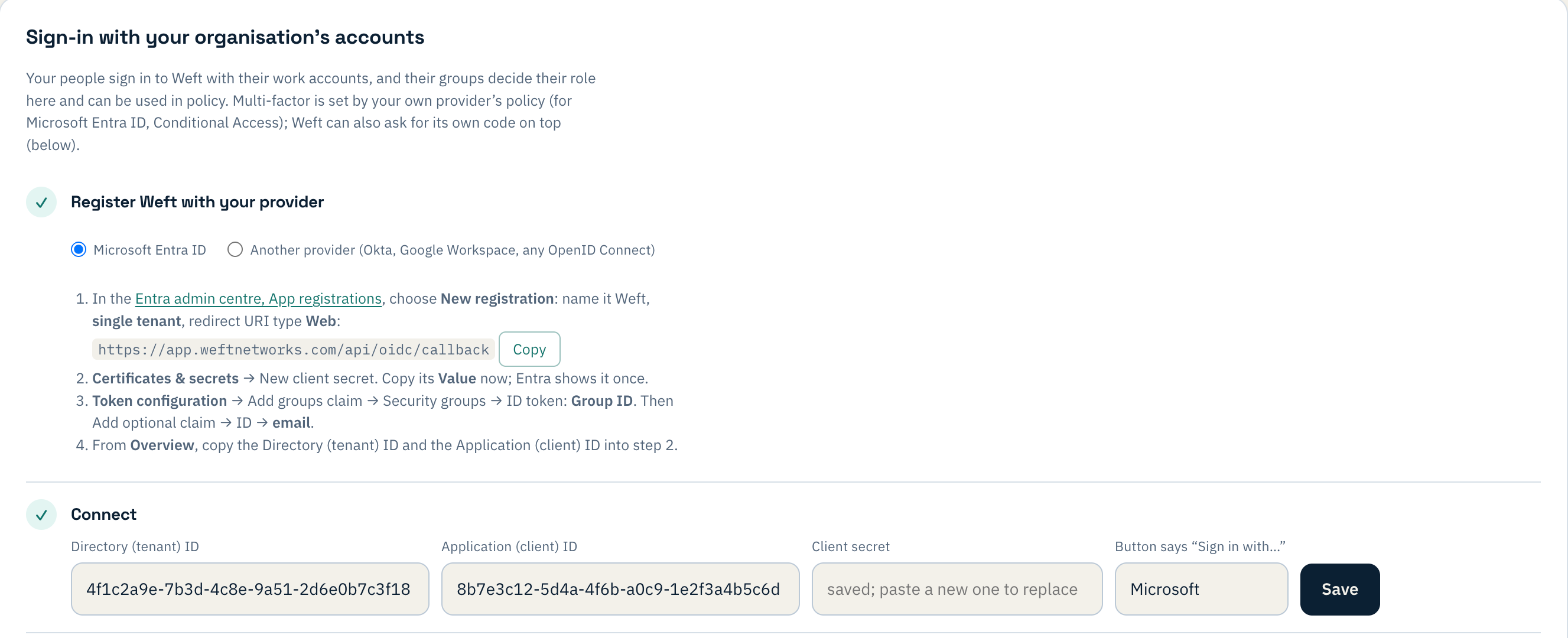
In Weft, go to Settings. The panel at the top walks you through it:
- Register Weft in Entra. In the Entra admin centre, App registrations, create one called Weft (single tenant) and paste the redirect address Weft shows you, with its Copy button. Add a client secret, and in Token configuration add the groups claim (Security groups, Group ID) and the email optional claim.
- Connect. Paste three values from the app's Overview page and the secret: the Directory (tenant) ID, the Application (client) ID and the secret. Weft works out the rest.
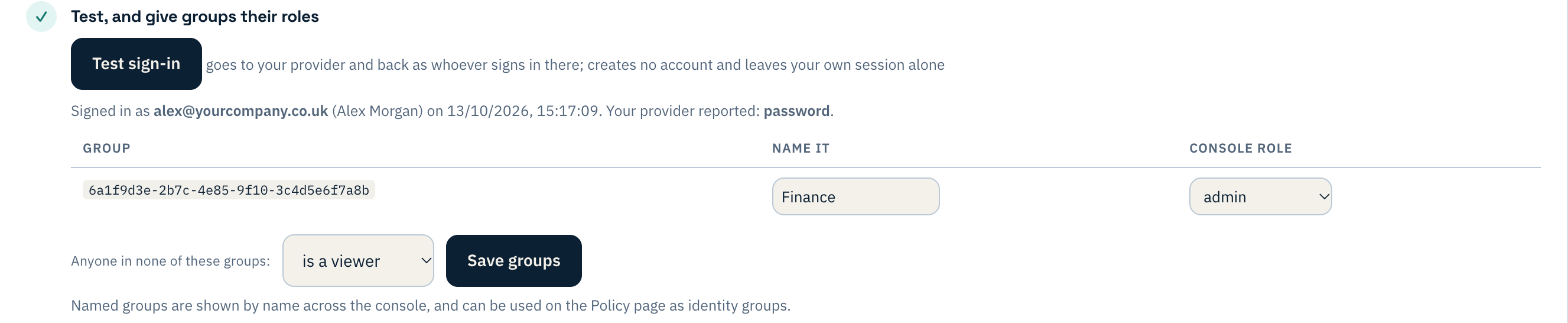
- Test, and give groups their roles. Press Test sign-in and sign in as anyone in your organisation. Weft shows who came back and which groups. Entra sends groups as long IDs, so you give each one a name you recognise, such as Finance or IT, and choose its console role: administrator, operator, viewer or none. You also choose what happens to anyone in none of them: refused, or a viewer.
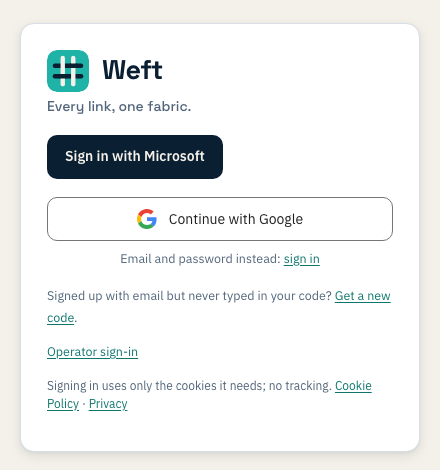
- Turn on. Weft gives you one link to share. It opens the Weft sign-in page with a button carrying your organisation's name.
The test creates no account and leaves your own session alone, and Weft won't let you turn sign-in on until a test has worked. If you later change the tenant or the application, it switches itself off until you test again. Your existing administrator sign-in keeps working throughout, so you always have a way back in. Okta, Google Workspace and any other OpenID Connect provider work the same way; you paste an issuer address instead of a tenant ID.
Multi-factor is your policy, not ours
You already decide in Entra when people need a second factor. Weft respects that rather than second-guessing it: a Conditional Access policy that requires multi-factor for the Weft application means Microsoft asks for it before anyone reaches Weft. (Entra's free security defaults alone often don't ask, because Microsoft only challenges ordinary users when a sign-in looks risky, so Conditional Access is the reliable way.)
If you want to check your policy is doing its job, Weft's test sign-in can show what Microsoft reported, for example password + multi-factor or passkey. It's information for you, not a rule Weft applies; it needs one optional extra step in the app registration, which the panel explains.
And if you'd rather Weft asked for a code itself, whatever your Entra settings, you can turn on Weft's own sign-in code: after the Microsoft sign-in, people enter a code from an authenticator app they set up with Weft once. With it on, the Weft app on their laptops asks them to sign in again every eight hours (you choose the number), so a lost laptop doesn't stay connected for long.
Groups in policy
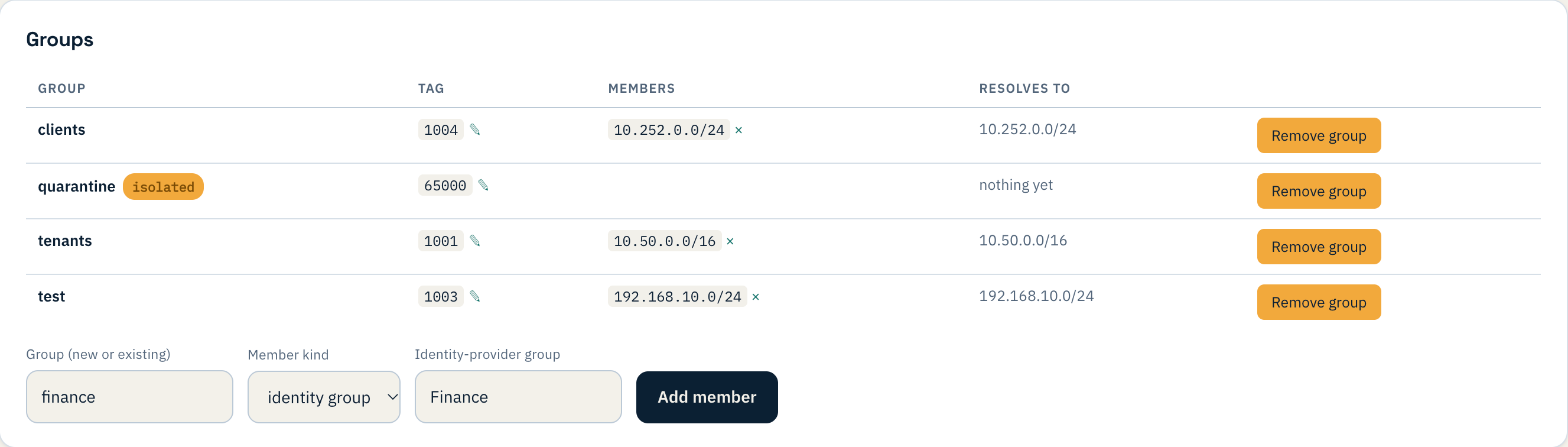
On the Policy page, a group can include everyone in an Entra group; the groups you named appear by name in the list. Their devices carry that membership, so a rule like "Finance can reach the finance server, HTTPS" follows the people in Finance wherever their laptop is. Membership is refreshed each time they sign in.
When someone leaves

Disable or delete them in Entra, as you already do. Give Weft's app registration one more permission, Microsoft Graph User.Read.All (an application permission, with admin consent), and turn on step 5 of the set-up. Weft then checks your directory every two minutes: anyone disabled or deleted there is signed out of Weft and their laptops leave your network, usually within about three minutes. Enable them again in Entra and they come back. Someone you disable in Weft yourself stays disabled.
Built to stay inside your organisation
Your provider is yours, which means it can say anything about anyone. So Weft trusts it for your organisation and nothing else: a sign-in through your provider can only ever create or change accounts in your organisation, never anyone else's, whatever names it asserts. Your local administrator account can't be taken over by the directory either. And Weft only ever fetches from your provider over HTTPS, to public internet addresses.
For how organisations and sign-in fit together if you look after several customers, see one sign-in for every customer.