
Blog · Guide · · 3 min read
Three offices on three continents
London, New York and Singapore joined with one command each: the real round-trip times, why the offices talk directly, where to put your hubs, and what remote staff see when one office goes dark.
The earlier guides joined two offices a few milliseconds apart. Real companies are rarely that tidy, so this time the offices are in London, New York and Singapore, and every figure below was measured on the run.
The three "offices" were small cloud instances in AWS's London, Virginia and Singapore regions, and a Windows machine in London played a laptop. The steps are the same with a box under a desk in each city.
What you need
- A box in each office running Ubuntu 24.04, set up as in the first guide.
- UDP 51820 reaching each box from outside.
- Nothing between the offices: no leased lines, no carrier, no MPLS. The internet each office already has is enough.
1. Enrol each office
The same Add a Linux node command as in the first guide, once per office. Ours enrolled at 10:48:37 (London), 10:48:54 (New York) and 10:49:32 (Singapore): three continents in under a minute, each from a fresh machine.
2. Watch them find each other
Each office tells Weft where it is, Weft tells the others, and every pair connects directly. Nothing to configure. Paths shows each tunnel measured from both ends:
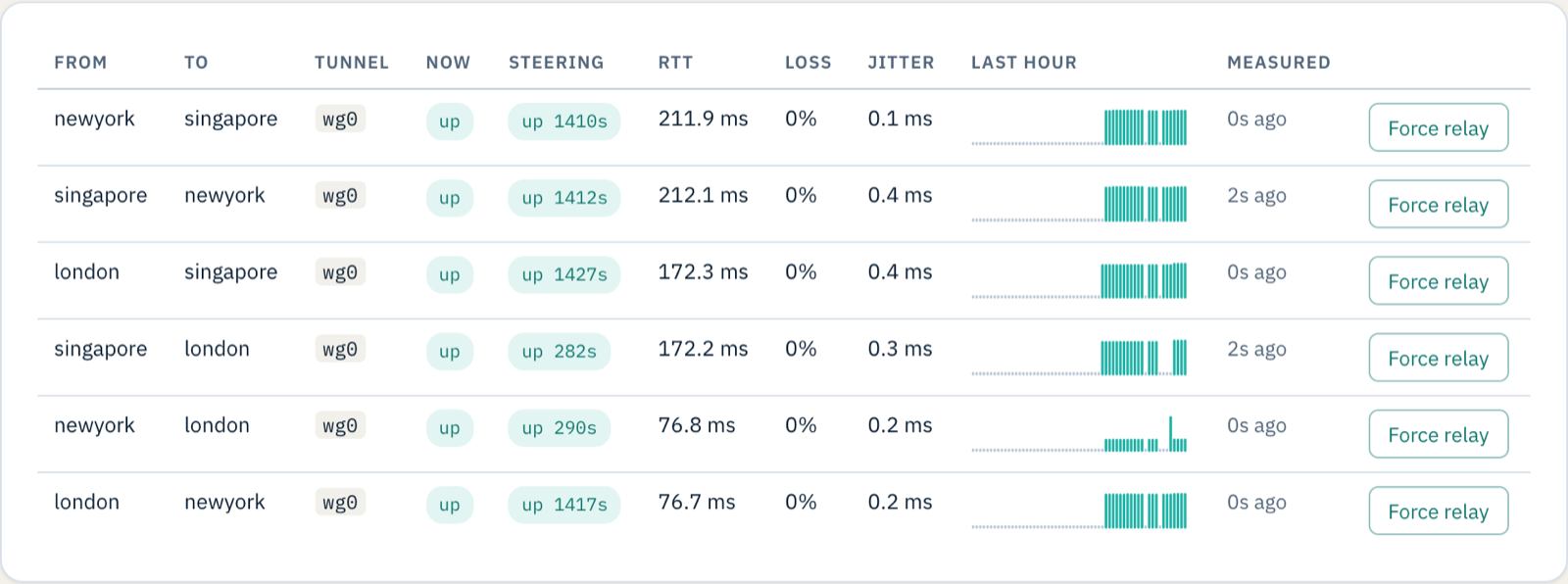
| Between | Round trip | Loss |
|---|---|---|
| London and New York | 77 ms | 0% |
| London and Singapore | 172 ms | 0% |
| New York and Singapore | 212 ms | 0% |
The last row is the one that matters. New York and Singapore talk to each other directly, at 212 ms. A design that sends everything through a head office in London would carry the same traffic 77 ms east and then 172 ms back out: 249 ms, and through a box that has better things to do.
3. Decide where your hubs live
Offices talk directly, but laptops working away connect to one place: the active hub. On each site's page under Route reflector, we made London a reflector first, so it became the active hub, then New York, which became the standby.
From a laptop in London, through the London hub:
| To | Round trip |
|---|---|
| London | 1 ms |
| New York | 76 ms |
| Singapore | 167 ms |
Through the hub, the laptop gets almost exactly the offices' own figures. Put the active hub where most of your remote staff are, and the standby where you can live with the detour, as step 4 shows.
4. Switch London off
We stopped the London box without warning and logged, every five seconds, what the laptop in London could reach.
| Time | What happened |
|---|---|
| 0:00 | London's box stops. |
| 0:17 | The laptop can reach none of the offices: its hub has gone. |
| 2:19 | Weft has moved the hub to New York, and the laptop reaches New York, across the Atlantic, in 76 ms. |
| 2:58 | The laptop reaches Singapore again, through New York: 285 ms. |
Nobody touched anything. The Overview records why the hub moved:
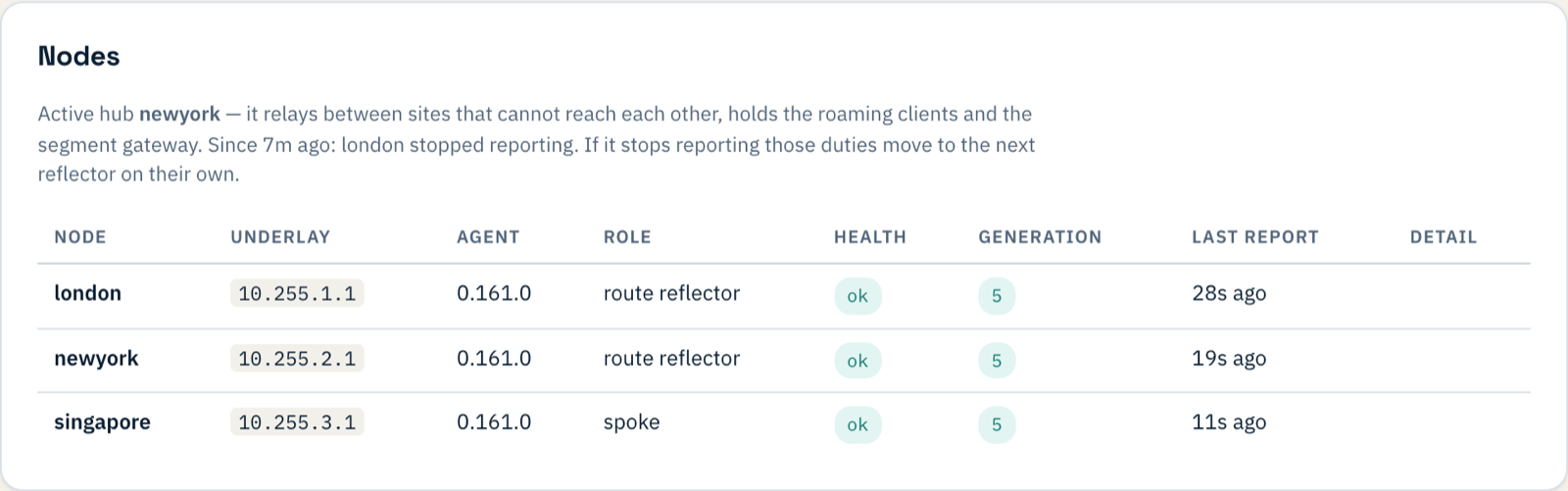
The 285 ms is the lesson. With its hub in New York, a laptop in London reaches Singapore by crossing the Atlantic first. That is the right trade during an outage, but it is why the standby belongs somewhere you can tolerate as everyone's route in for a while.
5. Bring London back
When the London box restarted it came back on a different public address. Weft picked that up by itself, and all six paths were up again 15 seconds after the box was running. The hub stayed in New York: moving it back costs every laptop a second interruption, so Weft leaves that to you. Press Make active hub on London's page at a quiet moment.
What we did not cover
Internet traffic. In this setup each office's own router still carries its internet traffic; only traffic between the offices goes through Weft. If you want internet traffic to go through Weft as well (for full-tunnel laptops, or to apply one policy everywhere), where it leaves matters as much as the latencies above, and choosing an exit near each office is a post of its own. We will measure it the same way.